Welcome to Projects With Jackie. In this article I will first explain how to install some popular programs on an Ubuntu machine then cover common programs for Ubuntu with the installation text string. The Ubuntu Desktop can use a lot of Terminal programs however those I will not cover in this article. All programs here have a GUI, or Graphical User Interface, that users can interact with. For a list of Terminal only programs check out my “List of Ubuntu Server Programs” – Link Here!
How to Install programs in Ubuntu:
On Ubuntu, the terminal can be accessed by either pressing Ctr+Alt+T or searching ‘terminal’ in the applications menu which can be opened by pressing the windows, or super, key on the keyboard. Once you have opened the terminal window, you will see a prompt where you can start typing commands to perform operations on your system. The terminal window is black with white text by default.
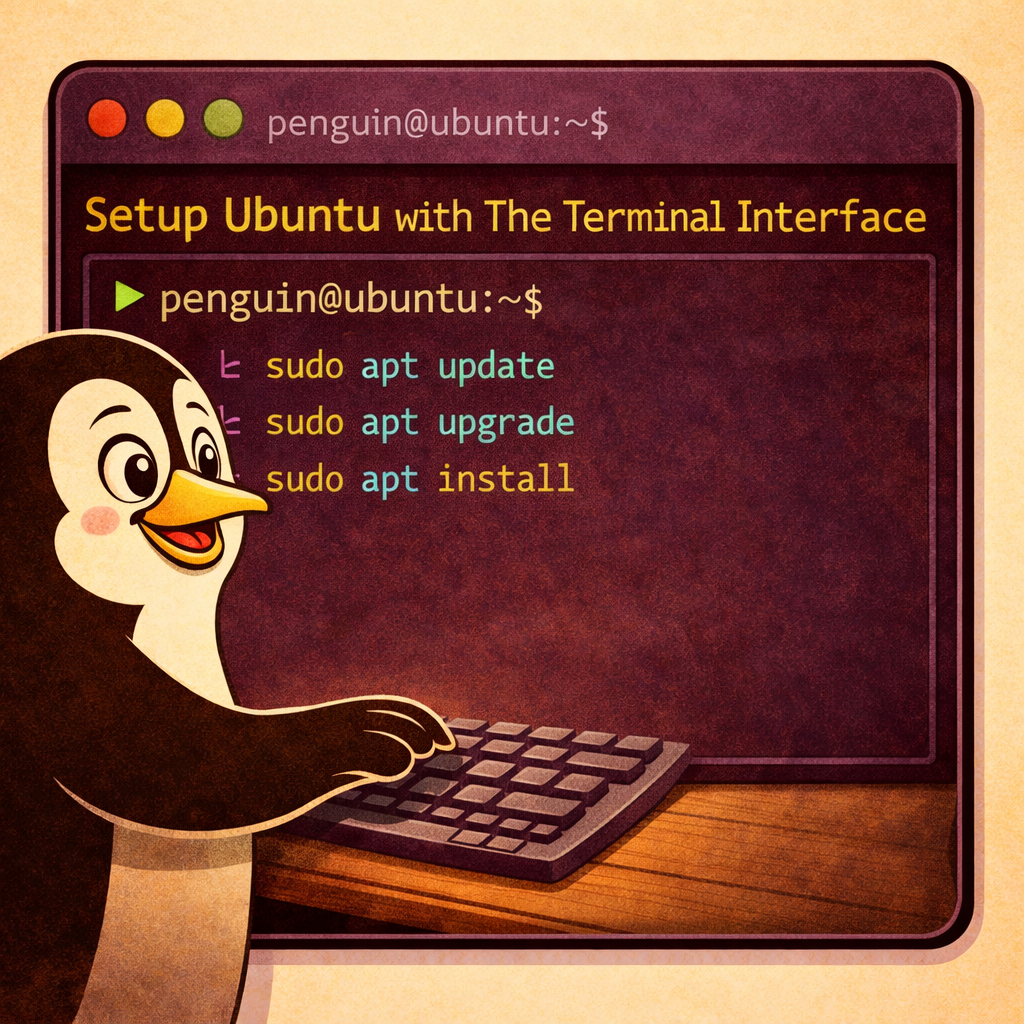
To download programs in Ubuntu using the Terminal, you will need to first update your system by running the following command: sudo apt-get update. This will show all programs which require updates. Once this is done, type in sudo apt-get upgrade to download all of the updates.
After all upgrades have finished installing then you can install new programs. Most programs are easy to install as they mostly will start with Sudo Apt Install ??? where ??? is the name of the program or a string of text that identifies the program. One example is Sudo Apt Install DDGR where DDGR identifies the program ‘Duck Duck Go’
Updates
- APT packages
sudo apt update && sudo apt upgrade
- Snap packages
sudo snap refresh
- Flatpak apps (if you’re using Flatpak)
flatpak update
Brave
Brave is a great internet browser that has one of the best built in add blockers that I have seen. The phone version, by default, will keep playing youtube videos when the screen is turned off. Making it my most commonly used internet browser.
sudo snap install brave
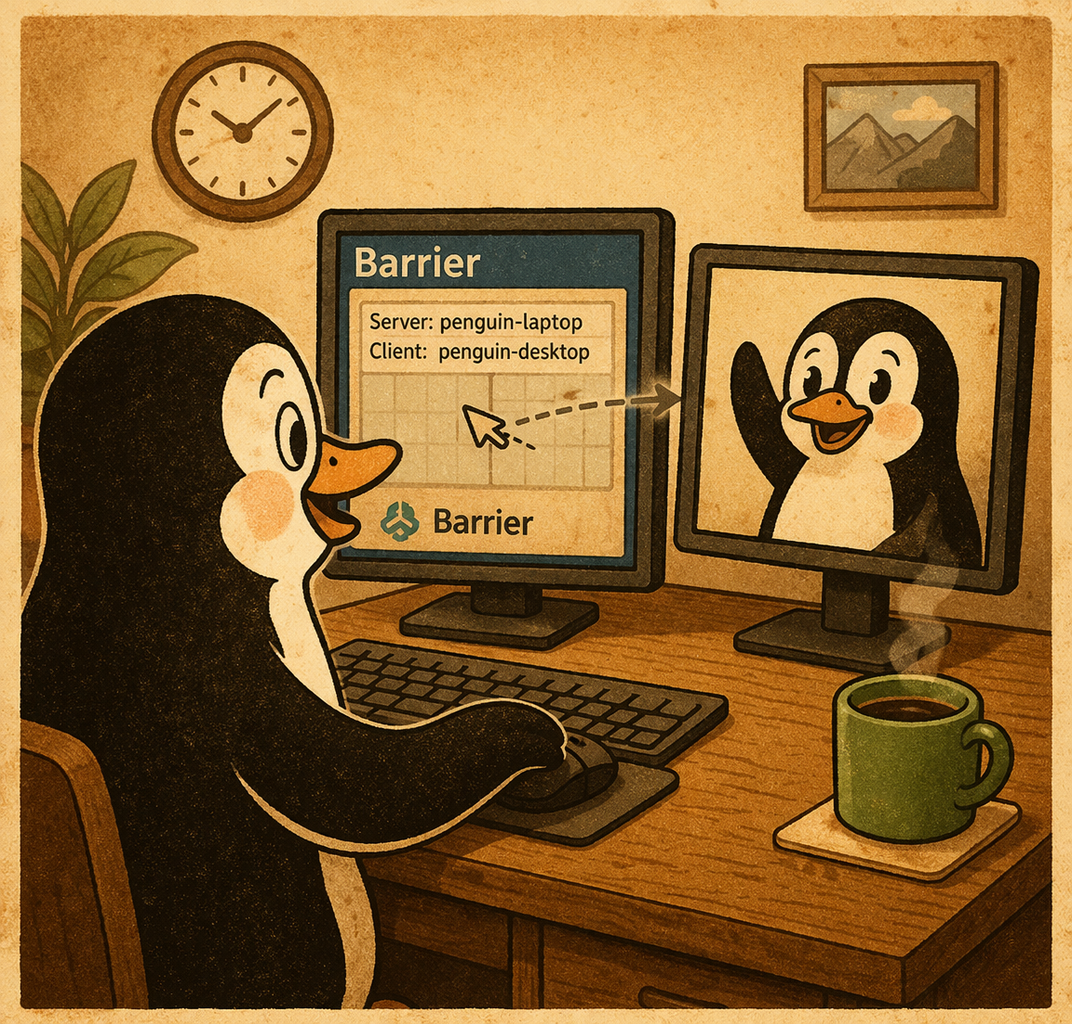
Barrier
Barrier is a free program that allows one computer to take over the mouse and keyboard of other local computers. It acts like a digital KVM, (keyboard, Video and Mouse switch) but it does not transmit video. Barrier only transmit keyboard and mouse input.
- install barrier by typing in the following into terminal
- sudo apt install barrier
- press the command key and type in barrier. Dont forget to right click it and add it to your favorites.
Libreoffice
A nice replacement from Microsoft Office suite. It may come pre-installed with Ubuntu. Though it is common for there to be issues when opening a document that was edited/created by Microsoft Office.
- sudo Apt Install LibreOffice
Chat-GPT
Chat-GPT has a program that can be downloaded on windows & MAC computers, and now it is in the SNAP store for linux.
- sudo snap install chatgpt-desktop
Duck Duck Go
Duck Duck Go is a popular web browser that boasts to not collect and sell information on its users.
- sudo Apt Install DDGR
LibreWolf
LibreWolf is a fork from FireFox but it comes already programmed to be one of the best web-browsers when it comes to user security. An important factor to remember when installing LibreWolf is to enter each command one line at a time. I have had issues entering all lines at one time.
- Check out their website for detailed instructions to download: https://librewolf.net/installation/debian/
Samba
Samba is a program that allows Linux distributions to access and provide access to Windows based file sharing services.
Shared Folder program (Post on Samba)
- Sudo Apt Install Samba
Remmina
Remmina is a remote desktop connection program which comes pre-installed on Ubuntu. See the program TeamViewer for an easier way to remote into computers.
- Sudo Apt Install Remmina
Raspberry Pi Imager
The Raspberry Pi imager is a free program that allows users to create a Raspberry Pi install drive to install Raspberry Pi OS from https://www.raspberrypi.com/software/operating-systems/
https://ubuntu.com/download/server/arm
- sudo snap install rpi-imager
- installs RPI program
- rpi-imager
- Simply type in “rpi-imager” to start the program on Ubuntu Desktop
VLC
VLC is a video and music player. It can also be used to download video and music from websites and it can also be used to splice video and music together though it can be complicated performing the additional functions.
- Sudo Snap Install VLC
Krita
Krita is a powerful opensource digital art program. A very popular alternate program from Adobe Paint.
- Sudo apt Install Krita
Discord
Discord is a popular chat application for gamers. It provides both audio and text chats and can also be used with alot of different Bots or AI.
- Sudo Snap Install Discord
LMMS
A open-source DAW or Digital Audio Workstation application.
- Sudo Apt Install lmms
Blender
A powerful 3D program which is opensource.
- Sudo Apt Install Blender
Steam
One of the most popular places to play games & it has alot of games which work with Linux.
- Sudo Apt Install Steam
GIMP
Another open-source digital art program.
- Sudo Apt Install GIMP
Synaptic
A package manager GUI
- Sudo Apt Install Synaptic
Skype
Communications program
- Sudo Apt Install Skype
Virtualbox
Allows your computer to host virtual machines.
- Sudo Apt Install Virtualbox
Audacity
Application which allows you to record and edit audio files.
- Sudo Apt Install Audacity
SimpleScreenRecorder
A free screen capture program in case OBS does not work on a fresh install.
- Sudo Apt Install SimpleScreenRecorder
Kodi
Allows you to host a server from a computer to stream video, music, photos and games. Similar to Plex.
- Sudo Apt Install Kodi
Plex Media Server
Plex Media Server is similar to Kodi but it has pay to use features. The Free version is still great if you have a decent CPU. If you decide to pay then Plex Media Server will use your GPU instead.
- Sudo Apt Install PlexMediaServer
- Learn more about Plex on Linux here <-
NotePad QQ
suped up version of Notepad. It allows for the use of Tabs which makes it top on my list of text editors.
- Sudo Apt Install NotePadQQ
Filezilla
A FTPS and SFTP program.
- Sudo Apt Install FileZilla
OBS
A fantastic free, and open source, Program to record/stream your desktop, or cameras, to other streaming platform such as Facebook. To install this program on Ubuntu you will need to use two commands.
sudo apt install obs-studio
OpenSSH Server
Will allow you to SSH into the computer. SSH is not installed on majority of Linux Distrubitions by default.
- Sudo Apt Install OpenSSH-Server
FireFox Browser
Mozilla Firefox is a free & open source internet browser that does not collect data on you unless you allow it to. I comes preinstalled on Ubuntu.
- Sudo Apt Install FireFox
When using Firefox as a fresh download be sure to go threw the settings and make changes to make sure you restrict tracking.
Tor Browser
Installs the Tor Web-Browser. Initial download can take up to about an hour to complete.
- Sudo Apt Install TorBrowser-Launcher
Syncthing
Syncthing is a fantastic sync program that allows users to sync data between multiple devices such as: Computers, NAS’s, Phones and Tables. It is straight forward if you are using only computers but can get complicated when using other devices.
- Sudo Apt Install Syncthing
Chess
Installs a basic chess game.
- Sudo Apt Install Gnome-Chess
LM-Sensors
Monitors Temp and other computer hardware stats.
TeamViewer:
TeamViewer is a fantastic program that most computers should keep handy. It allows users to provide access to their computer remotely so that other people can do things while you watch. This is great for those who may need somebody else to repair their computer or work on their network.
- sudo wget https://download.teamviewer.com/download/linux/teamviewer_amd64.deb
- sudo dpkg -i teamviewer_amd64.deb
- sudo apt –fix-broken install
- You will now see the icon when you press the Windows, or Meta, Key and type in TeamViewer. Right click to add to favorites.
TeamViewer can also be downloaded from their official website here -> HTTPS://TeamViewer.com
Select the correct .deb file under the section titled “TeamViewer Full Client”
After the .deb file is downloaded. Move it to /var/cache/apt/archives/ and then right-click on the .deb file and select “Extract Here”
TMUX
Terminal Multiplexer. Allows for multiple windows to be opened up at the same time in a Terminal instance so that one Terminal window will show multiple windows at the same time.
sudo apt install tmux
Openshot Video Editor
sudo apt install openshot--qtNextcloud
I do commonly have issues installing NextCloud-Desktop, which is not covered here.
sudo snap install nextcloud
CURL
sudo apt install curl
curl –version