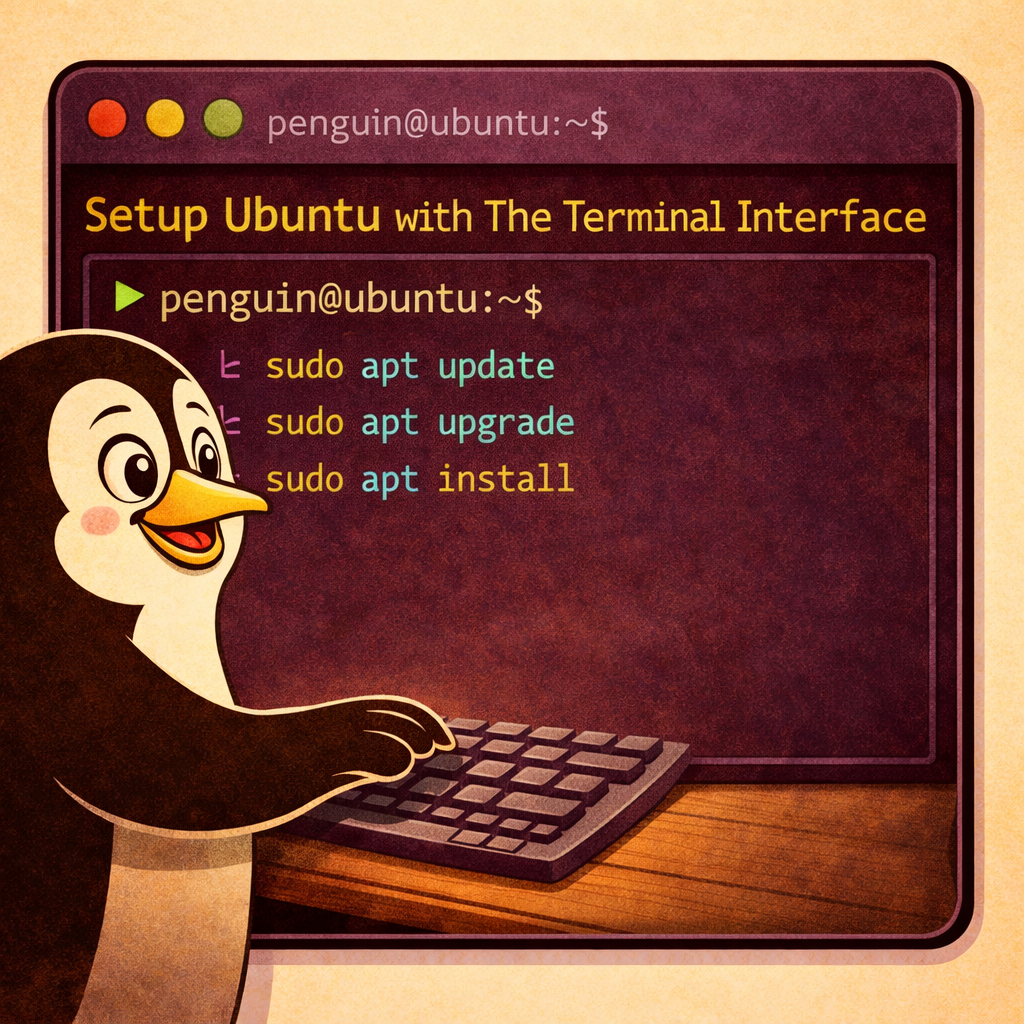
This is a quick guide to help setup Ubuntu (Linux Distro) via Terminal Commands.
This guide assumes that Ubuntu is already installed.
A guide on how to install Ubuntu onto a computer is coming soon for those who need it.
After a fresh install of Ubuntu simply type or copy and paste the desired commands into the terminal or CLI.
My preferred desktop looks like the photo below.
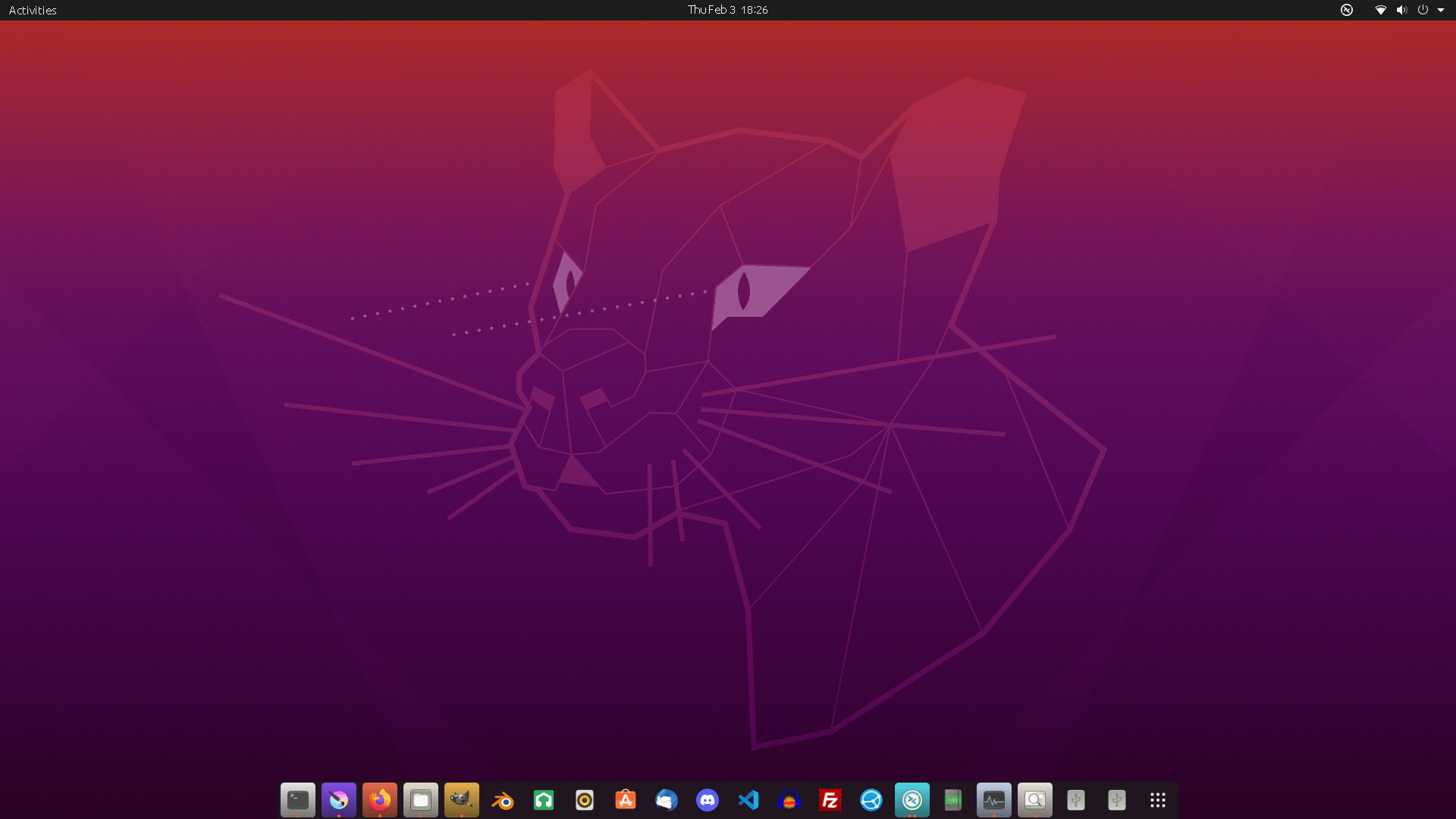
If you are new to Linux check out my article: Linux Intro
Updates:
sudo apt update
-Fetches a list of available updates for Ubuntu
sudo apt upgrade
-Installs some updates without removing any packages
Programs for a cleaner desktop environment:
sudo apt install gnome-tweaks
-This will install the Gnome Tweaks tool which can help with desktop customization.
sudo apt-get install ubuntu-gnome-desktop
-Installs the packages to help make Ubuntu look nicer & give new customization options.
sudo apt install dconf-editor
-Installs packages to help Ubuntu look nicer & gives new customization options.
NVIDIA GPU:
If using a NVIDIA GPU you may need to change the driver to the NVIDIA Proprietary & Tested drivers for better video quality. Especially if using a Ultra-Wide monitor.
1. Hit the ‘Start’ button to pull up the search and type in Additional Drivers. A green icon will come up.
2. Press Enter & select the driver that says (Proprietary, Tested). It should be the top choice.
3. Restart the computer.
Personal settings I use:
The following 5 lines are to customize the Taskbar to be at the bottom center instead of the default position on the left side to the screen. These commands will change the Desktop Environment to look like the photo at the beginning of this article.
gsettings set org.gnome.shell.extensions.dash-to-dock extend-height false
gsettings set org.gnome.shell.extensions.dash-to-dock dock-position BOTTOM
gsettings set org.gnome.shell.extensions.dash-to-dock transparency-mode FIXED
gsettings set org.gnome.shell.extensions.dash-to-dock dash-max-icon-size 32
-In the code above. simply change the number for different icon sizes.
gsettings set org.gnome.shell.extensions.dash-to-dock unity-backlit-items true
-This will make it so that active programs will have a background illuminated behind them while active.
gsettings set org.gnome.desktop.interface gtk-theme `Adwaita-dark`
-Sets your Ubuntu Desktop Environment to “Dark” mode.
gsettings set org.gnome.shell.extensions.desktop-icons show-trash false
-This is optional. This will hide your desktop from showing the trash.
gsettings set org.gnome.shell.extensions.desktop-icons show-home false
-Optional command. This will hide the Home folder on the desktop.
Optional:
gsettings set org.gnome.desktop.wm.preferences button-layout ‘close,minimize,maximize:’
-Changes the side that the “Minimize, Maximize and Close” buttons from the right to the left side.
sudo apt install rar unrar p7zip-full p7zip-rar
-Installs extra zip utilities
Thank you!
I hope this post is useful for you. If the post was helpful feel free to share it with others.
Subscribe for future articles!