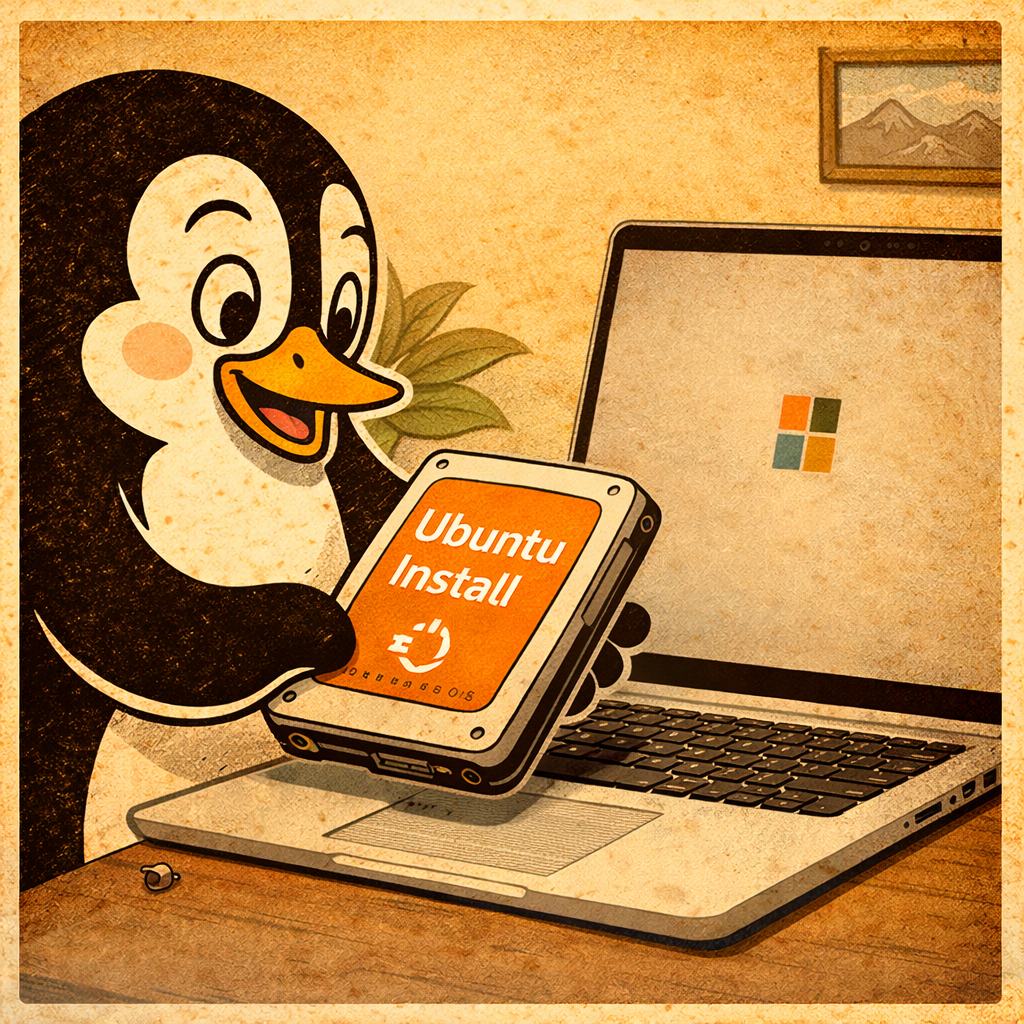
I love the Microsoft Surface Book lineup but my biggest issue is Windows. So I decided to install Ubuntu on my Surface Book and it has been working great. In this article I wont cover how to install Ubuntu its-self but I will cover important info.
Touchscreen
When Ubuntu is first installed the only thing that did not work for me is the touch screen. To enable the touchscreen functionality on your Microsoft Surface Book running Ubuntu Desktop, you’ll need to install a custom kernel specifically tailored for Surface devices. The linux-surface GitHub project provides these kernels, offering enhanced support for hardware features like the touchscreen.
GitHub
First GitHub will need to be installed.
- sudo apt install git
After GitHub is installed sign into your GitHub account and authenticate your device.
- gh auth login
After you are logged in and your device is authenticated head to the location below and click on the green ‘code’ button. Copy the GitHub CLI code, also below, and paste it into your terminal.
- https://github.com/linux-surface/linux-surface
- Above is the location to copy the code below.
- gh repo clone linux-surface/linux-surface
- Above is the code needed. Paste it into Terminal
The URL below will be needed for the next part.
https://github.com/linux-surface/linux-surface/wiki/Installation-and-Setup
Navigate to the dedicated Ubuntu and it will have some commands to enter into Terminal.
I received an error with this command:
sudo apt install linux-image-surface linux-headers-surface libwacom-surface iptsd
It would fail when I attempted to install the packages. I removed the iptsd from the tail of the command and that make it so that it could be installed.
I then followed the steps here: https://github.com/linux-surface/linux-surface/wiki/Known-Issues-and-FAQ#apt-update-fails-on-ubuntudebian-based-distributions-with-error-401-unauthorized
Additional Resources:
- By following these steps, you should achieve full touchscreen functionality on your Ubuntu-installed Surface Book.
Touch Failed to Enable
If the touch function fails to enable try running these commands.
- sudo systemctl start iptsd
- Attempts to start touch in current section.
- sudo systemctl enable iptsd
- Enables touch on system boot up.
- sudo systemctl status iptsd
- Confirms that it is runnint
If the command above does not fix the touch screen you may need to reboot your system.