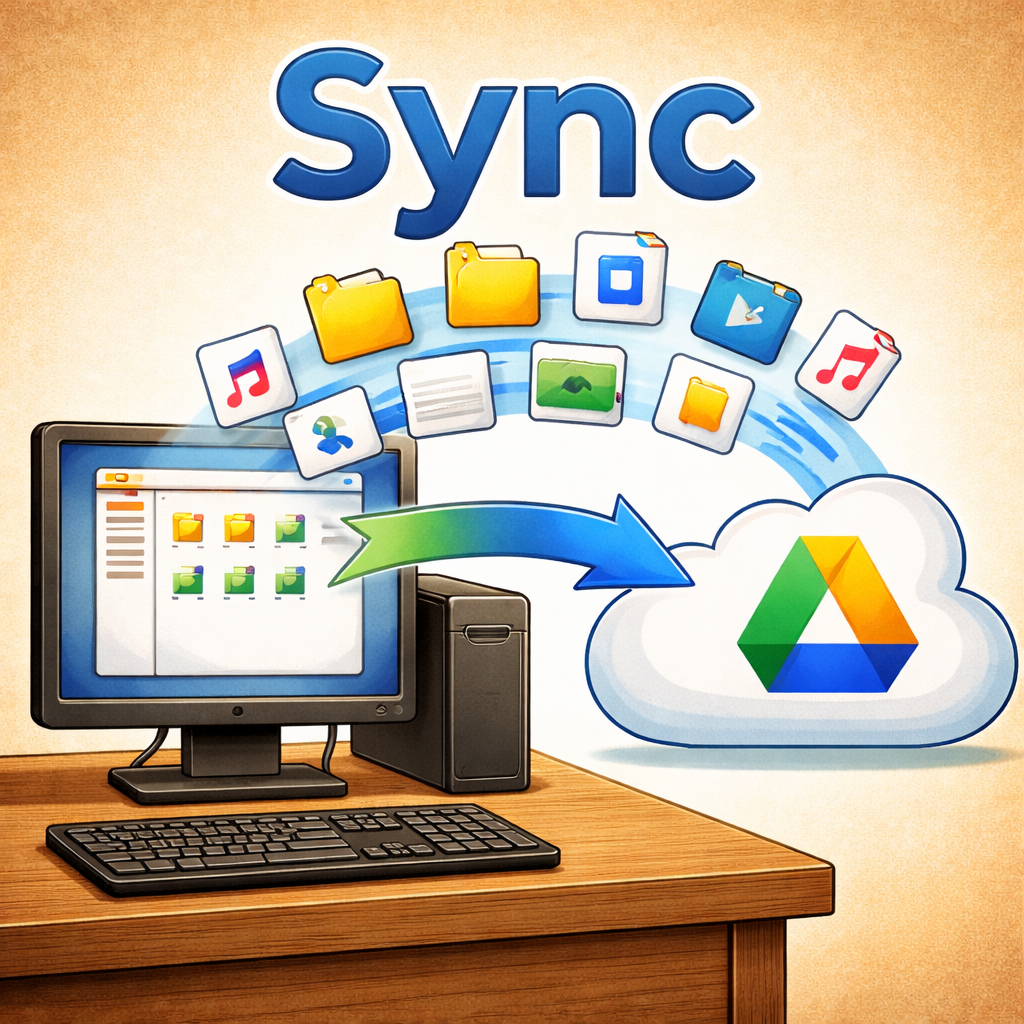
Google Drive offers a convenient solution for storing and organizing your files in the cloud. With the Desktop App, you can easily sync files between your Windows computer and your Google Drive account. This step-by-step guide will help users install the Desktop App and set up a Sync between a Windows Computer & the Google Drive Cloud.
Some important info to know about Google Drive are:
The default storage size is 15GB as of the time of creating this article.
Deleted files go to the Trash and are automatically deleted after 30 days unless restored or permanently deleted before the time limit.
Do not store sensitive information such as Social Security Numbers in any clouds that is attached to the internet – as all clouds are subject to hacking.
Step 1: Download and Install Google Drive for Desktop
- Go to the Google Drive for Desktop Website:
- Open your preferred web browser (Google Chrome, Firefox, etc.) and visit the official Google Drive for Desktop download page: https://support.google.com/drive/answer/10838124?hl=en
- For mobile check out this official guide: https://www.google.com/drive/download/
- Download the Installer:
- Click the “Download” button under “For individuals” to download the Google Drive for Desktop installer. The installer will be downloaded as a
.exefile.
- Click the “Download” button under “For individuals” to download the Google Drive for Desktop installer. The installer will be downloaded as a
- Install Google Drive for Desktop:
- Once the file is downloaded, locate the installer (
GoogleDriveSetup.exe) in your Downloads folder or the location where your browser saves files. - Double-click the installer to run it.
- Follow the on-screen prompts to complete the installation process. You may need to grant permission for the program to make changes to your computer during installation.
- Once the file is downloaded, locate the installer (
Step 2: Sign In to Your Google Account
- Launch Google Drive for Desktop:
- Once installed, the Google Drive icon should appear in your taskbar at the bottom-right corner of your screen (near the clock).
- Click on the Google Drive icon to open the application.
- Sign In to Google Account:
- When prompted, sign in using your Google account credentials (email and password).
Step 3: Choose Sync Preferences
- Select Sync Options:
- Once signed in, the Google Drive for Desktop app will prompt you to set up how you want to sync files between your Google Drive and your computer.
- Sync My Drive to This Computer:
- Choose whether you want to sync all files from your Google Drive to your computer or just select folders. Here are the options you can choose:
- Stream files (default setting): This option allows you to view your Google Drive files on your computer without taking up much space. Files will appear in the Google Drive folder on your PC, but they’ll only be downloaded when you need them.
- Mirror files: This option downloads all of your Google Drive files to your computer, keeping them available even when you’re offline. These files will occupy space on your hard drive.
- Choose whether you want to sync all files from your Google Drive to your computer or just select folders. Here are the options you can choose:
- Choose Folders to Sync (Optional):
- If you select the “Sync My Drive to this computer” option, you can choose specific folders from your Google Drive to sync, rather than syncing everything. This is useful if you don’t want to sync large amounts of data.
- Confirm Your Settings:
- After selecting your sync options, click “Start” to complete the setup.
Step 4: Access Google Drive Files on Your Windows PC
- Find Your Google Drive Folder:
- After setting up the sync, a Google Drive folder will be created on your PC. You can find it in File Explorer under This PC or Quick Access in the left sidebar.
- The folder will be named “Google Drive” or the name you’ve assigned to it during setup.
- Use the Google Drive Folder:
- You can drag and drop files into this folder to upload them to Google Drive.
- Files and folders you add to Google Drive will sync automatically with your Google Drive cloud storage and vice versa.
- If you’re using streaming mode, files will not take up local storage until you open them.
- Offline Access (If Using “Mirror” Option):
- If you chose the “Mirror files” option, all of your Google Drive files will be available offline in the Google Drive folder. Any changes you make will sync with Google Drive once you’re online again.
Step 5: Manage Sync Settings
If you want to change how Google Drive syncs with your computer, you can modify the settings at any time.
- Open Google Drive Preferences:
- Click on the Google Drive icon in the system tray (taskbar) and then click on the gear icon for settings.
- Select Preferences to open the sync settings.
- Change Sync Settings:
- You can adjust whether you are syncing all files, specific folders, or switch between the streaming or mirroring options.
- You can also choose to pause syncing if needed or disconnect your account from the Google Drive app.
Step 6: Pause or Disconnect Syncing
If you ever need to pause or stop syncing for a while:
- Pause Syncing:
- Click on the Google Drive icon in the taskbar and select “Pause”. This will temporarily stop syncing your files.
- Disconnect Your Google Drive Account:
- If you want to disconnect Google Drive for Desktop from your account, go to Preferences and select Disconnect Account. This will stop syncing and remove the Google Drive folder from your computer.
Step 7: Google Drive Sync Notifications
- View Sync Status:
- The Google Drive icon in the taskbar shows a small icon that indicates the sync status:
- A green checkmark means files are synced.
- A blue circular arrow indicates that syncing is in progress.
- A red exclamation mark indicates there’s an error or issue with syncing.
- The Google Drive icon in the taskbar shows a small icon that indicates the sync status:
- Check for Sync Errors:
- If you experience any sync issues, you can click the Google Drive icon to view the error message or retry syncing.
Conclusion
Syncing your Google Drive with your Windows computer using Google Drive for Desktop provides seamless access to your cloud files directly from your PC. You can easily manage your files, upload or download them, and access them offline, all while keeping your data backed up to Google Drive. Following the steps above will help ensure a smooth experience syncing your files.