If your Windows computer is running slow, you’re not alone. Over time, PCs tend to slow down due to various reasons such as software bloat, hardware limitations, or accumulated files. Fortunately, there are several ways you can boost your computer’s performance without having to spend a lot of money on upgrades. In this guide, we’ll walk you through 10 practical ways to speed up a slow Windows computer, from upgrading your hard drive to managing your browser tabs.
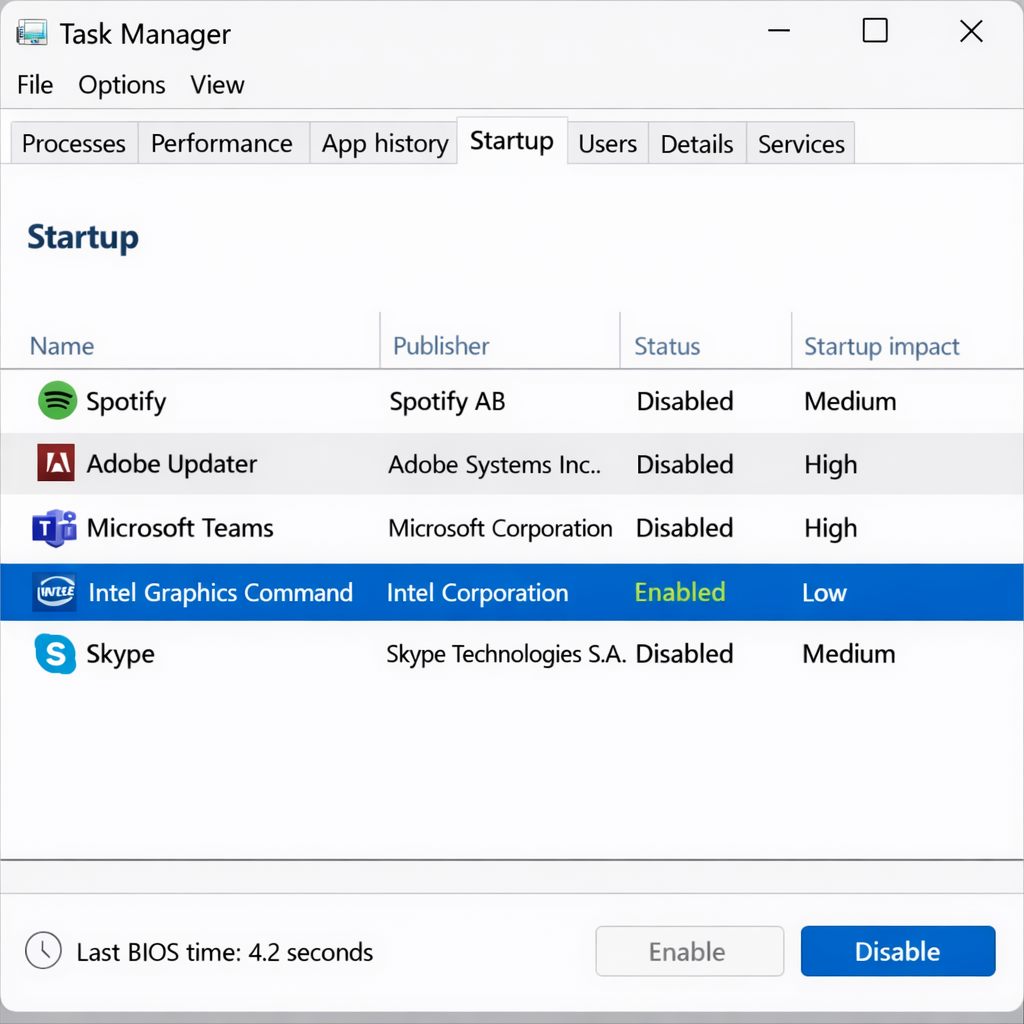
Disable Unnecessary Startup Programs
Many programs automatically start when you turn on your computer, consuming precious resources and slowing down the boot process. Disabling unnecessary startup programs can speed up both your boot time and overall performance.
How to disable startup programs:
- Open the Start Menu by pressing the Windows Key on the keyboard and type in Task Manager.
- Press Enter to open Task Manager.
- Sometimes Task Manager will be opened in the mini mode. If so click on the expand button on the bottom right hand side to open Task Manager in full view.
- Click on the Start-up Programs tab.
- Review the list of programs and disable any that are unnecessary or that you don’t use regularly.
- Try to keep only essential programs enabled.
- Important: Reboot your PC so the newly disabled programs will no longer be running in the background.
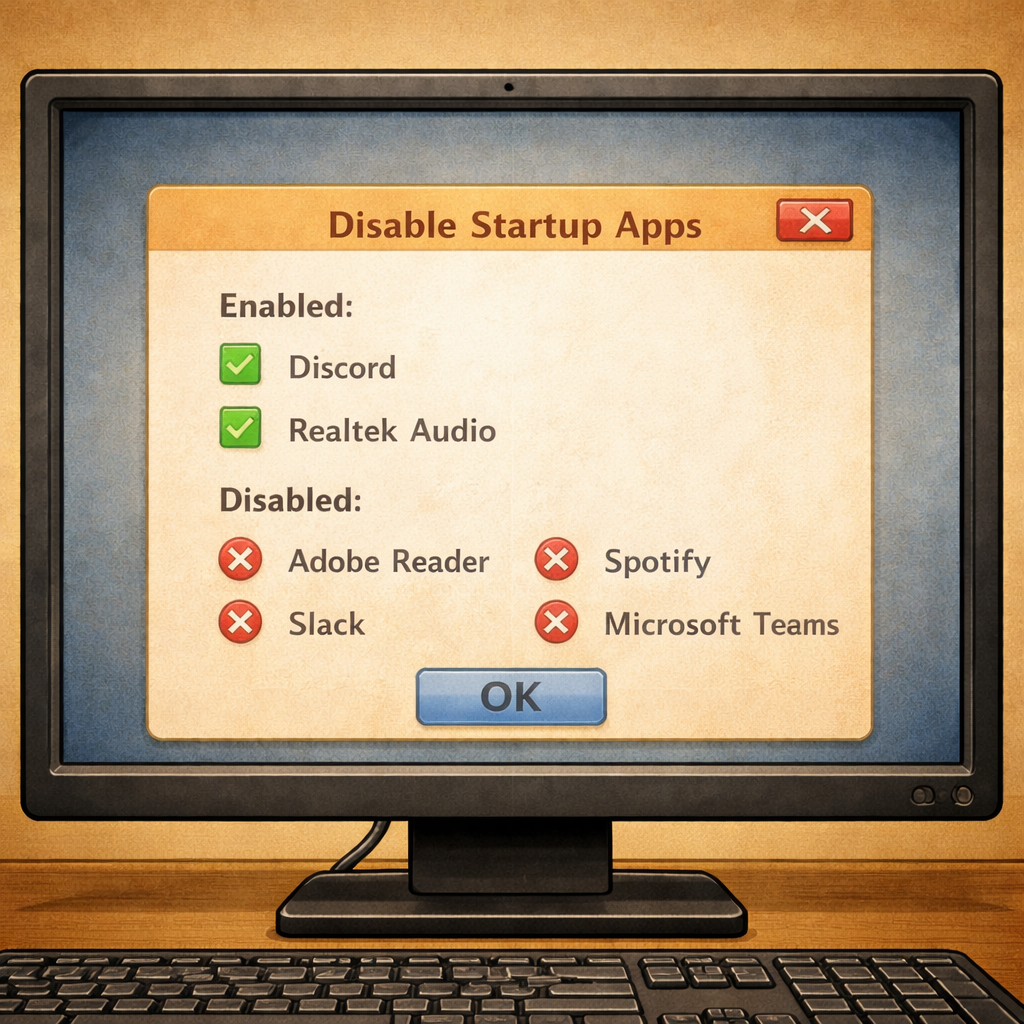
Disabling Startup Programs is one of the first things that I do to help speed up slow computers. Below is a list of programs that I keep enabled or disabled:
I may add more items over time to this list. If there is something you have that is not on this list give it a quick search using your favorite search engine. Be sure to keep useful programs such as Audio.
Anti-Virus
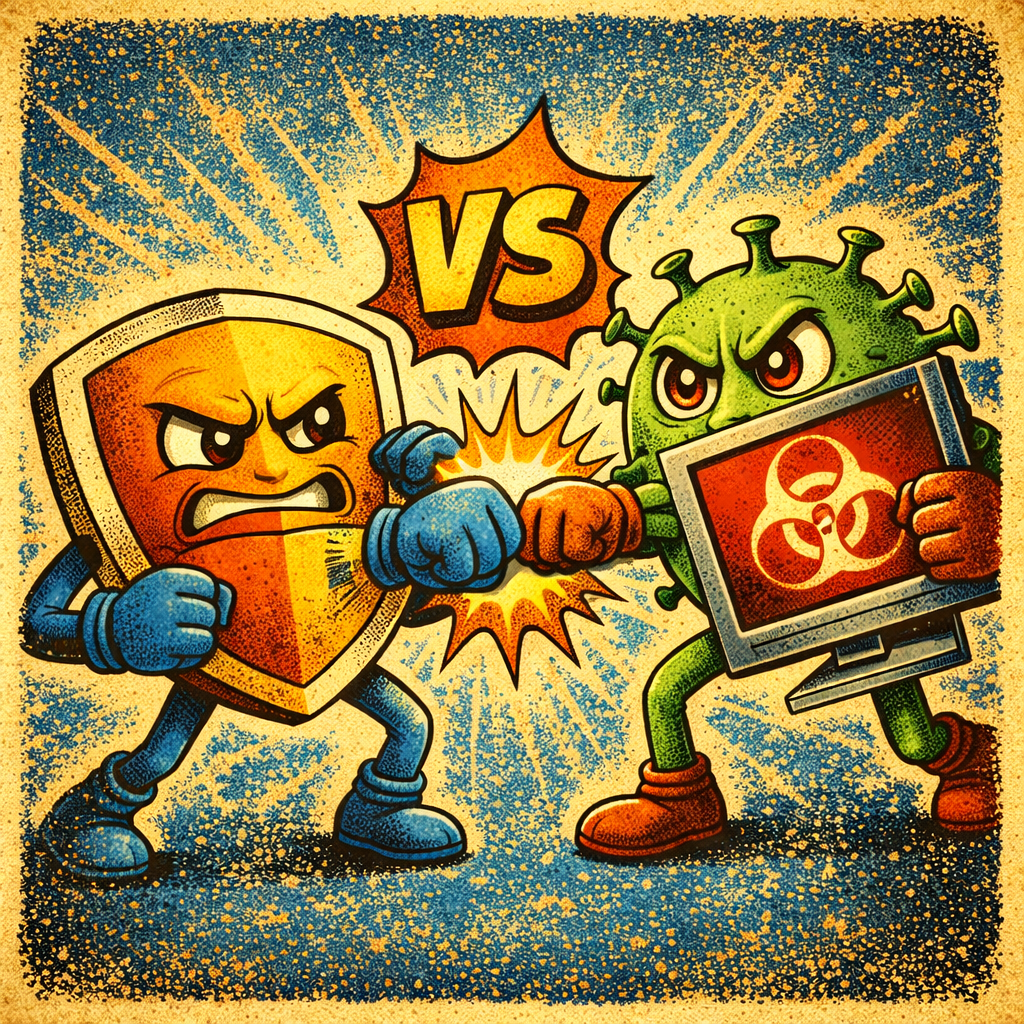
From time to time I see computers with two, or more, antivirus programs running at the same time. This will take a lot of computer resources and can be corrected by disabling the Antivirus programs that are not required.
Windows has their own built in Antivirus. Ensure it is enabled and then disable the other Antivirus programs to help with PC Speeds.
Important: After disabling a 3rd party Antivirus, be sure to run a Full PC scan with the Windows Virus Scan. Disable Anti-Virus programs at your own risk as this guide does not cover Viruses in depth.
- Open the Start Menu by pressing the windows key on the keyboard.
- Type in Virus and press enter.
- Select the Full Scan option and press Scan.
The next section will cover how to Uninstall programs.
Uninstall Unnecessary Programs:
Over time, you might install programs you no longer use, and they can take up valuable storage and resources. Uninstalling these unnecessary programs can help free up space and improve your PC’s speed.
How to uninstall programs:
- Open the Start Menu by pressing the Windows Key on the keyboard and type in Uninstall.
- Do not uninstall any programs that you do not know the function of as some programs are required for important functions on your computer.
- Select programs you no longer need and click Uninstall.
Run Malware and Virus Scan:
Malware and viruses can cause your system to slow down by using system resources or running unwanted processes in the background. Running a full system scan can help identify and remove any threats that may be affecting performance. Windows comes with Microsoft Defender which is the virus scan I go to when needed.
How to run a Microsoft Defender scan:
- Open the Start Menu by pressing the Windows Key and type in Virus.
- A App called Virus & Threat Protection should appear.
- Press Enter.
- This will open Microsoft Defender
- Select on Full Scan and click on Scan.
- While here ensure the Microsoft Defender is set for automatic scans.
Upgrade Your HDD to an SSD:
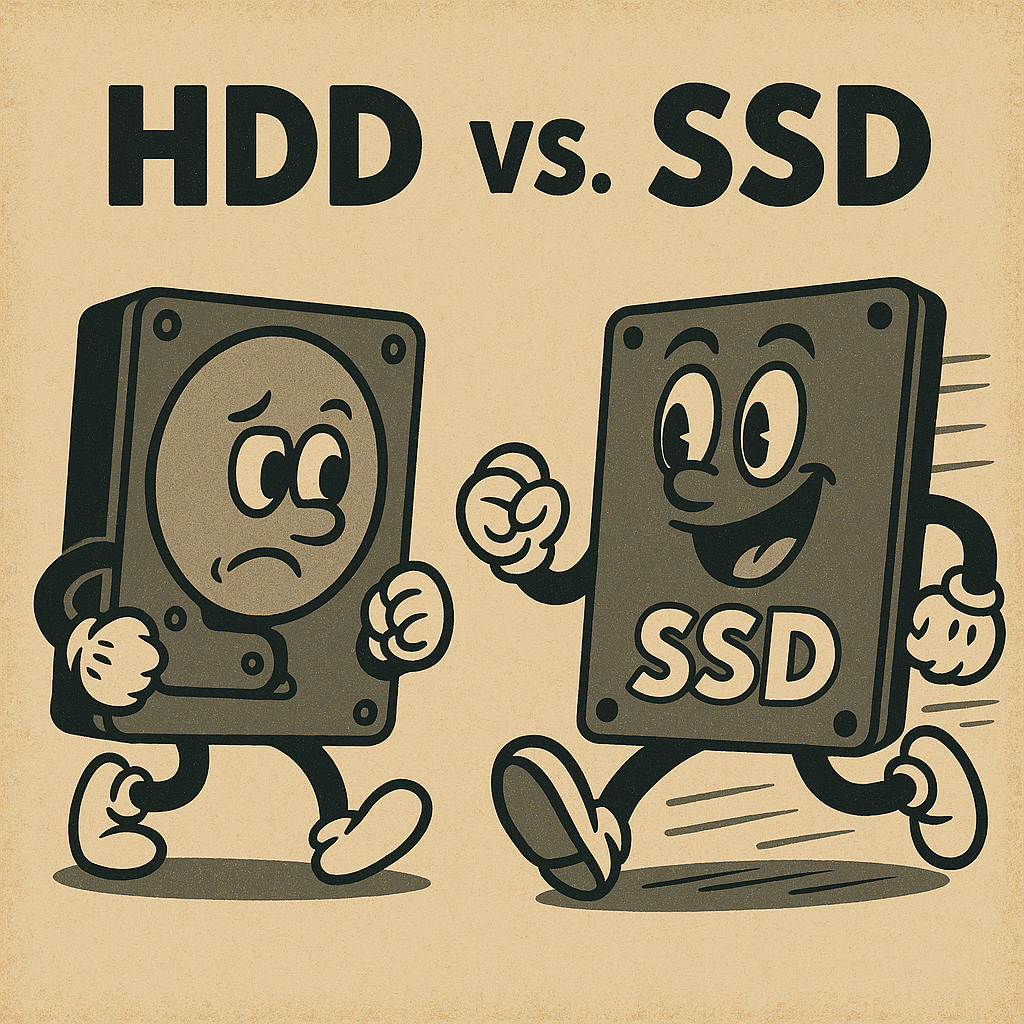
Upgrading a computer from a traditional hard disk drive (HDD) to a solid-state drive (SSD) can dramatically improve overall system performance and make an older machine feel almost new again. Unlike HDDs, which rely on spinning platters and mechanical read/write heads, SSDs use flash memory with no moving parts, allowing them to access data much faster. This results in significantly quicker boot times, faster application launches, and smoother system responsiveness during everyday tasks like web browsing or file transfers.
Upgrading an HDD to an SSD is best performed by someone who is tech savvy. Users who have not performed this before are recommended to take the computer to someone who can perform the upgrade and is not covered in this article.
There are several ways to check the drive type in your PC.
- Some computers will have a panel that is easy to remove allowing users to look inside. If your computer is easy to open take a look at your drive. See illustrated image above. They should say HDD or SSD on them. if not match them to the illustration above.
- Another method for checking the drive type is by opening Task Manager (Press the windows key and type in Task Manager) and go to the Performance Tab. If the drive with the letter :C says HDD then the PC will need an upgrade.
Install the Latest Windows Updates:
Outdated software, including the Windows operating system itself, can cause your PC to run slowly. Windows regularly releases updates that not only add new features but also patch security holes and improve performance. Keeping your system up-to-date can help your computer run more efficiently.
If you have Windows 11 this is especially important because in late 2024 Microsoft released an update that helps Windows not be so resource heavy. They may introduce this to older versions of Windows.
How to update Windows:
- Ensure all documents are saved and your computer is ready to reboot. Often times Windows updates require a restart of the computer.
- Open the Start Menu by pressing the Windows key on your keyboard.
- Type in Update and press Enter.
- There should be a button that says “Check for Updates”
With installing Windows Updates, restarting your computer from time to time can also help your computer because some windows updates require a system reboot. I actually turn my computer off every night and I recommend this habit.
Windows 11:
Windows is known for being resource intensive which makes it run slow on a lot of computers, this is especially true with older versions of windows. However Windows 11 has changed that – it is not as resource hungry as older versions. Computers with older versions of Windows should be updated to Windows 11 because Windows 11 is faster and more secure. All older versions of Windows will not receive updates.
Some older computers do not officially meet Microsoft’s hardware requirements for Windows 11. In these cases, Windows 11 may be installed using an unsupported method. The system will still function normally, but Microsoft may not officially guarantee updates or support for these devices.
Restart, or power off, your computer regularly:
Restarting your computer clears background processes and will free up system resources. I power off my computer every night before bed so that in the morning my computer will be fresh. Some changes to your computer may not take affect until after a reboot and some Windows updates require a reboot.
Disable visual effects:
Windows tries to look fancy at the cost of your computers resources. While it may not pull a lot of computer resources some users may need every single bit of their resources.
- Open the Start Menu by pressing the Windows Key
- Type in Visual Effects and press enter
- Turn Off: Transparency Effects and Animation Effects.
Turn off Widgets:
Widgets is another feature that Windows computers come with by default to try to enhance the user experience. While they do not pull a lot of resources disabling Widgets will still help when combined with everything else on this list.
- Right-Click on the Taskbar
- Select Taskbar Settings
- Toggle Widgets to Off
Free Up Space on a Full Hard Drive:
If your hard drive is near full, it can dramatically impact your system’s performance. Windows needs free space to create temporary files, run background processes, and perform tasks. Keeping your hard drive clean and free of unnecessary files can give your system the room it needs to run efficiently.
How to check free space on a drive:
- Open File Explorer by left-clicking on the folder icon or by pressing CTRL + E on the keyboard
- Right-click on your hard drive (usually C:), and select Properties.
- Here you should see how much space is free on your drive. If the drive is full it would be best to either move files off of the computer to another location such as a cloud. Or simply delete unnecessary files.
- Video files are a good place to start as they are usually the largest file type.
- Another good place to clean up space is by checking what is in the recycling bin before permanently deleting file in the recycling bin.
Close Excessive Web Browser Tabs:
Having too many open tabs in your web browser can significantly slow down your computer. Each tab consumes memory and CPU power, so it’s important to keep your browser usage under control. Tabs will continue to draw on computer resources even when that tab is not open.
How to manage browser tabs:
- I bookmark websites that I go to frequently and organize them into folders so that I can close as many tabs as possible.
- I also have a folder titled “TBW” which stands for “To Be Worked” which are bookmarks that I need, or want, to process later.
- There are some web browser extensions that will force tabs to go to sleep after a certain amount of time has passed but for enhanced privacy I just manually bookmark websites.
Web Browser:
I actually use multiple web browsers but if the pc is slow then you should try to only use one browser if you can. Also, your main web browser needs to be both fast, updated and private.
Choosing a good web browser can be complicated so I will cover it in more detail in another article.
If you are looking for a quick answer use FireFox, Brave, or Duck Duck Go, for now. There are other great browsers but they can get complicated as to why I recommend using these.
If you are using Edge, Internet Explorer, Google Chrome, Oprah – You need to delete these. They are either slow, or spyware, or both.
Close unused programs:
Similar to closing unused tabs, closing programs that are currently not in use will help reserve computer resources.
Every program you run on your computer uses valuable system resources like CPU power, memory (RAM), and storage. Even when you’re not actively using them, many programs continue to run in the background, consuming these resources. Closing unused programs helps free up these resources, improving your computer’s overall performance.
When multiple programs are open at the same time, they can compete for limited system resources. As a result, your computer may experience lag, slow load times, or even crashes, especially if you’re running resource-heavy applications. By closing unused programs, you ensure that more memory and processing power are available for the tasks you’re actively working on, such as web browsing, video editing, or gaming.
Moreover, some programs may also run background processes that you’re unaware of. These background tasks can further drain your system’s performance. By shutting down unnecessary applications, you can stop these processes and allow your computer to run more efficiently.
Check the Taskbar for programs that can be closed out. Also on the right hand side of the Taskbar there will be a small arrow with some other programs that are running. This section is kinda hidden and most people dont notice it being there.
Adjust Power Settings:
Windows has different power plans that affect how much power your computer uses. By switching to a higher power setting, your computer will run at full performance, which can improve speed.
- Ensure laptops are plugged into power as they are often set to go into power saving mode when on battery power.
How to adjust power settings:
- Open the Start Menu by pressing the Windows Key on the keyboard and type in Power Action Settings.
- Ensure Energy Saver is turned off.
- Change Power Mode to Best Performace
Note: High-performance mode can consume more energy, so it’s best used when plugged into power.
Use Disk Cleanup (Warning: Will Delete Passwords):
Disk Cleanup is another built-in tool that can help improve your computer’s performance by removing temporary files, system files, and cached data. However, it’s important to note that Disk Cleanup may also delete stored passwords, so be sure to back up anything you need before running it.
How to use Disk Cleanup:
- Open File Explorer and right-click on your C: drive.
- Select Properties, then click on Disk Cleanup.
- Choose the types of files you want to delete (temporary files, system files, etc.).
- Click OK and then Delete Files to free up space.
If you’re concerned about losing passwords, consider using a password manager to store your passwords securely before running Disk Cleanup.
Log-in Screen:
The Log-In screen will show news and weather by default. While this does not take up much of a computers speed I always remove it because I don’t like looking at the news when I am logging into my PC for work.
To remove the news/weather articles from the Windows 11 sign-in or lock screen:
- Open Settings
- Go to Personalization
- Click Lock screen
- Find Lock screen status
- Change it from Weather and more to None
That should remove the news, weather, finance, sports, and other article cards from the lock screen. Microsoft’s lock screen widgets are controlled through Settings > Personalization > Lock screen > Lock screen status, where choosing None disables that experience.
Network:
To keep this part simple. I will say Ethernet will provide the best network speeds so try to use Ethernet when ever possible. If using WiFi ensure you are close to the router for a strong WiFi connection.
About:
As the Family Nerd, my goal is to help non-techie people learn about, and find, the tech that they need. We do this by providing as much information as we can from a Nerdy standpoint. This includes common issues seen with family and friends.