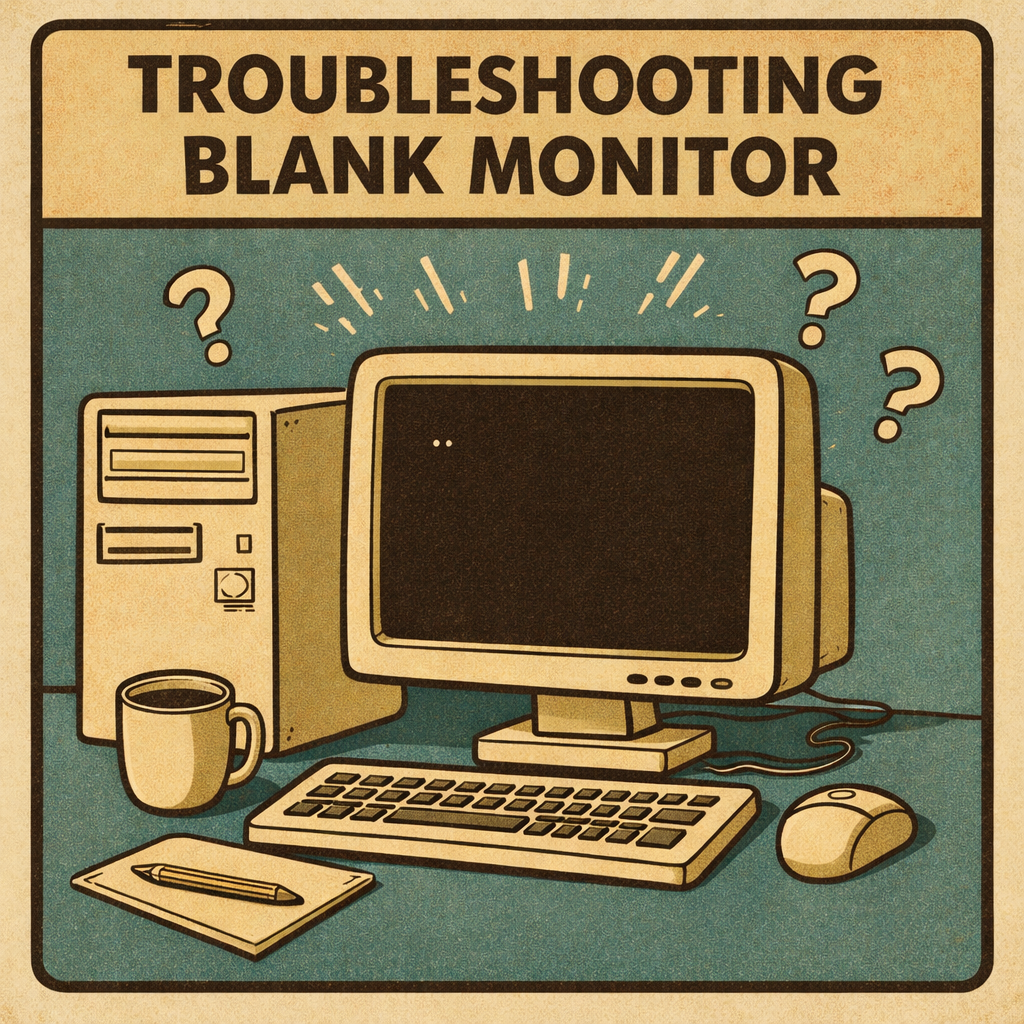
If your computer monitor is displaying a blank or black screen, the issue can range from a loose cable to a hardware problem. Follow the steps below in order to diagnose and resolve the most common causes.
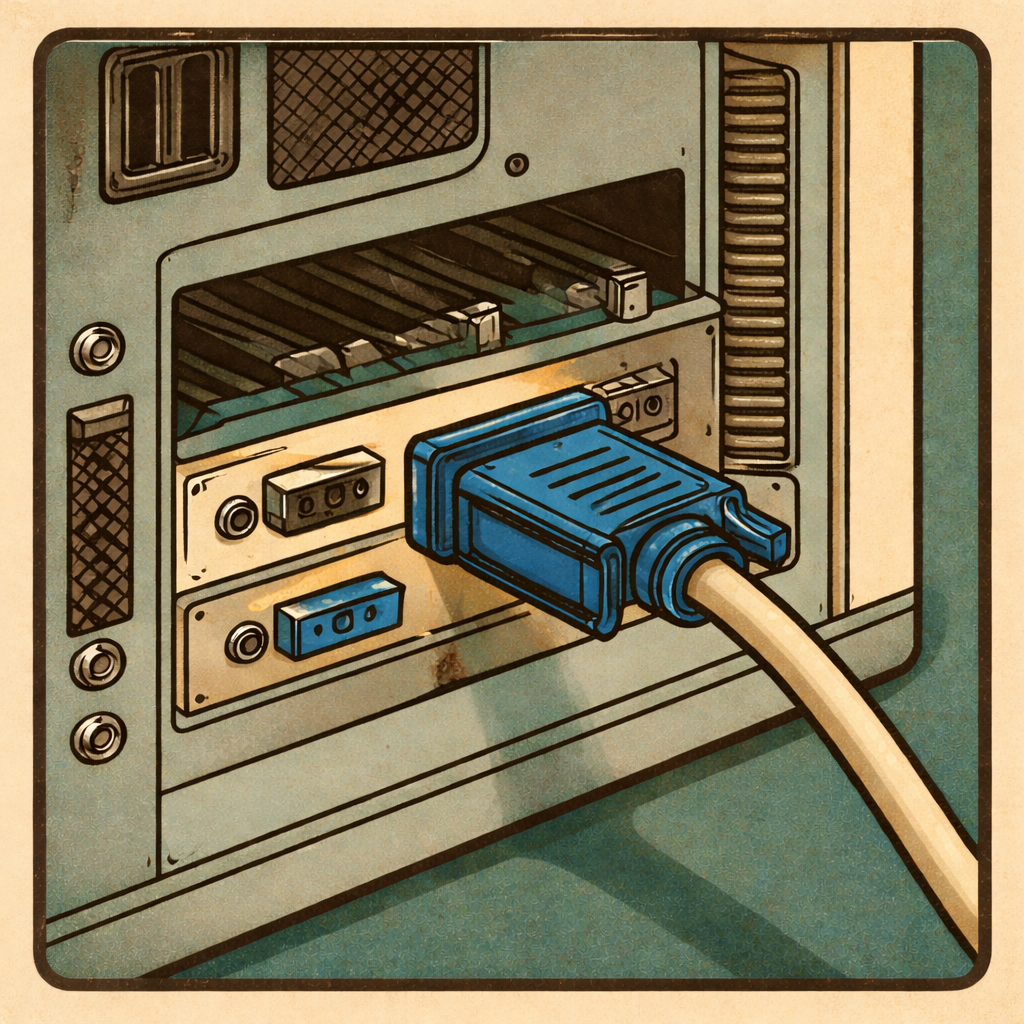
1. Check All Power and Video Cables
Start by verifying that all cables are securely connected.
- Ensure the power cables, to the PC and Monitor, are firmly plugged into working outlet or power-strip. Ensure the power-strip is turned on.
- Confirm the video cable (HDMI, DisplayPort, VGA, DVI, or USB-C) is fully seated on both the monitor and the computer.
- Sometimes its good to unplug and then plug back in the video cables.
- Trace the cable from the back of the PC to make sure it does actually connect to the back of the desired monitor.
- It is common for cables to get mixed up and not actually connect between the PC and Monitor.
- Inspect cables for damage, bent pins, or fraying.
- If possible, try a different cable to rule out a faulty one.
Loose or defective cables are common causes of a blank screen. Even professionals use this troubleshooting step often.
If using a USB-C cable for video input ensure that the cable actually supports video. There are different types of USB-C cables and most do not support video.
2. Make Sure the Monitor Is Powered On
Even experienced users can overlook this step.
- Press the power button on the monitor.
- Look for a power indicator light.
- If there is no light, the monitor may not be receiving power.
- Also, check that the computer is powered on.
If the monitor displays a message such as “No Signal”, that confirms the monitor itself is powered on and working.

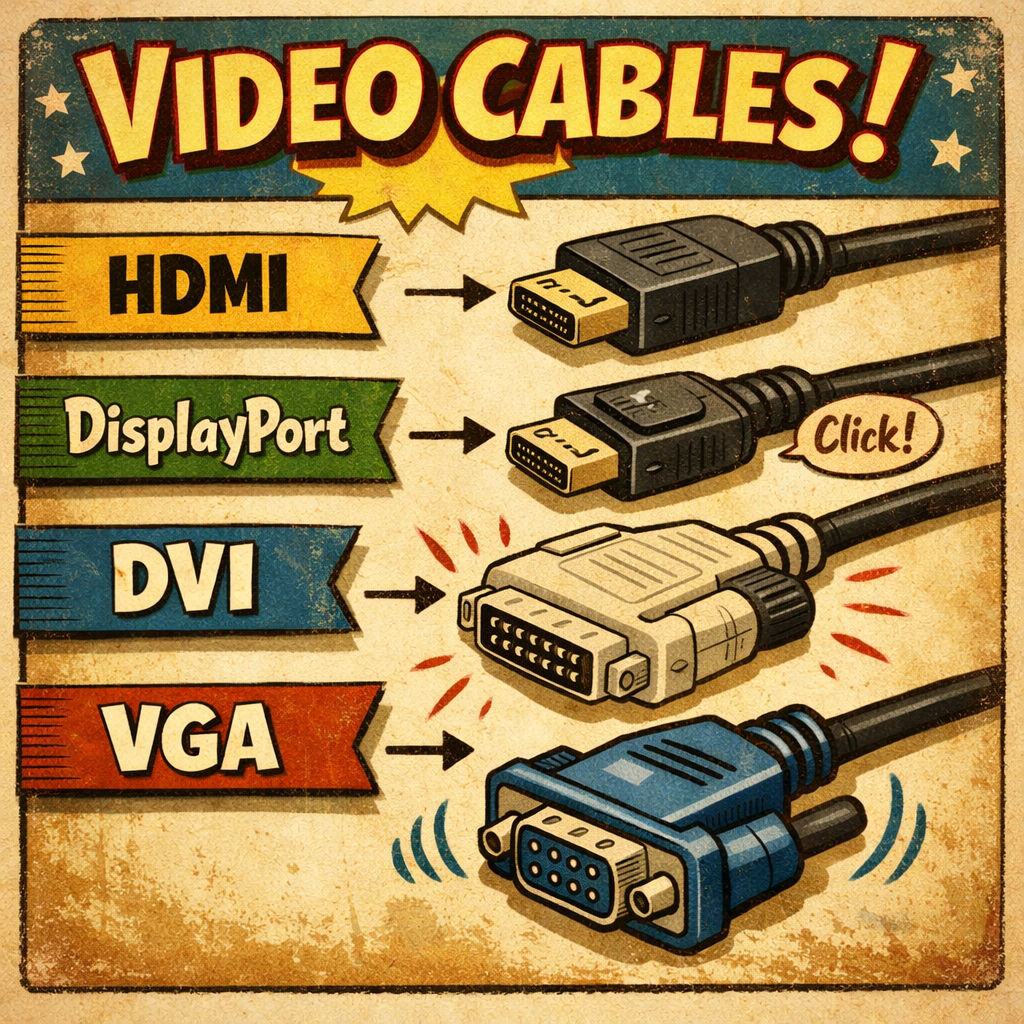
3. Confirm the Correct Input Source
Monitors with multiple input options must be set to the correct source.
- Use the monitor’s Input / Source button or on-screen menu.
- Match the selected input to the cable you are using (for example, HDMI or DisplayPort).
An incorrect input source will result in a blank or “No Signal” screen even when everything is connected properly.
4. Wake Up the Computer
The computer may be asleep, in a low-power state, or simply turned off.
- Ensure the computer is powered on by checking spinning fans and ensuring the power button has a light illuminated.
- Usually when a PC is on the power indicator light will be on. If the power light is flashing it usually means the pc is asleep.
- Press a key on the keyboard or move the mouse to make sure the PC is awake.
- Briefly press the computer’s power button once (do not hold it down).
- For laptops, open the lid. Oftentimes laptops will go into sleep mode when the lid is closed and the user will need to go into the power settings to change what happens when the lid is closed..
If the system was sleeping, the display should turn back on within a few seconds.
Confirm the correct input source is being used with the monitor again. (Step 3)
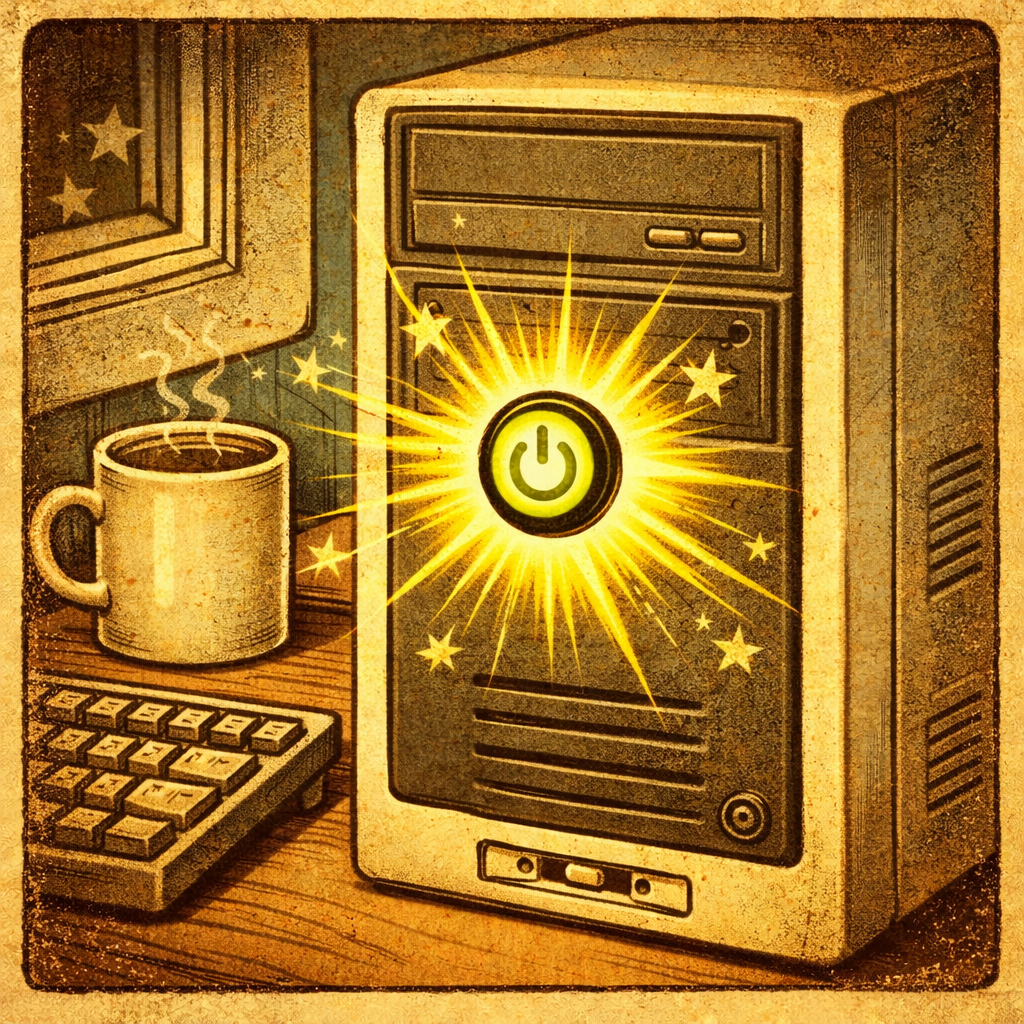

5. Test the Monitor or Computer With Another Device
This step helps isolate whether the issue is the monitor or the computer.
- Connect the monitor, using the video cable that is connecting the PC and monitor together, to another device, such as a laptop, game console, or streaming device. We need to test that the cable is also working.
- Alternatively, connect the computer to another monitor or TV.
Results:
If the monitor remains blank, while testing with another video source such as a gaming console, the monitor itself may be faulty.
If the monitor, and video cable, work with another device (Such as a console), the issue is likely with the computer.
6. Reboot the PC
A system error or failed display initialization can cause a black screen.
- Shut down the computer completely by pressing and holding the power button down until all fans stop spinning and the power light goes out.
- Wait 30 seconds.
- Turn the system back on and watch for any display activity during startup.
A reboot often resolves temporary software or driver-related issues. It is always good to turn the PC off from time to time. I turn my computers off every day when I am done with my office.
7. Check Graphics Card and Internal Connections (Desktop PCs)
This section is for people who are comfortable with computers. If you do not have very much experience or knowledge then it may be best to find someone who is perform this section. A video may be created soon.
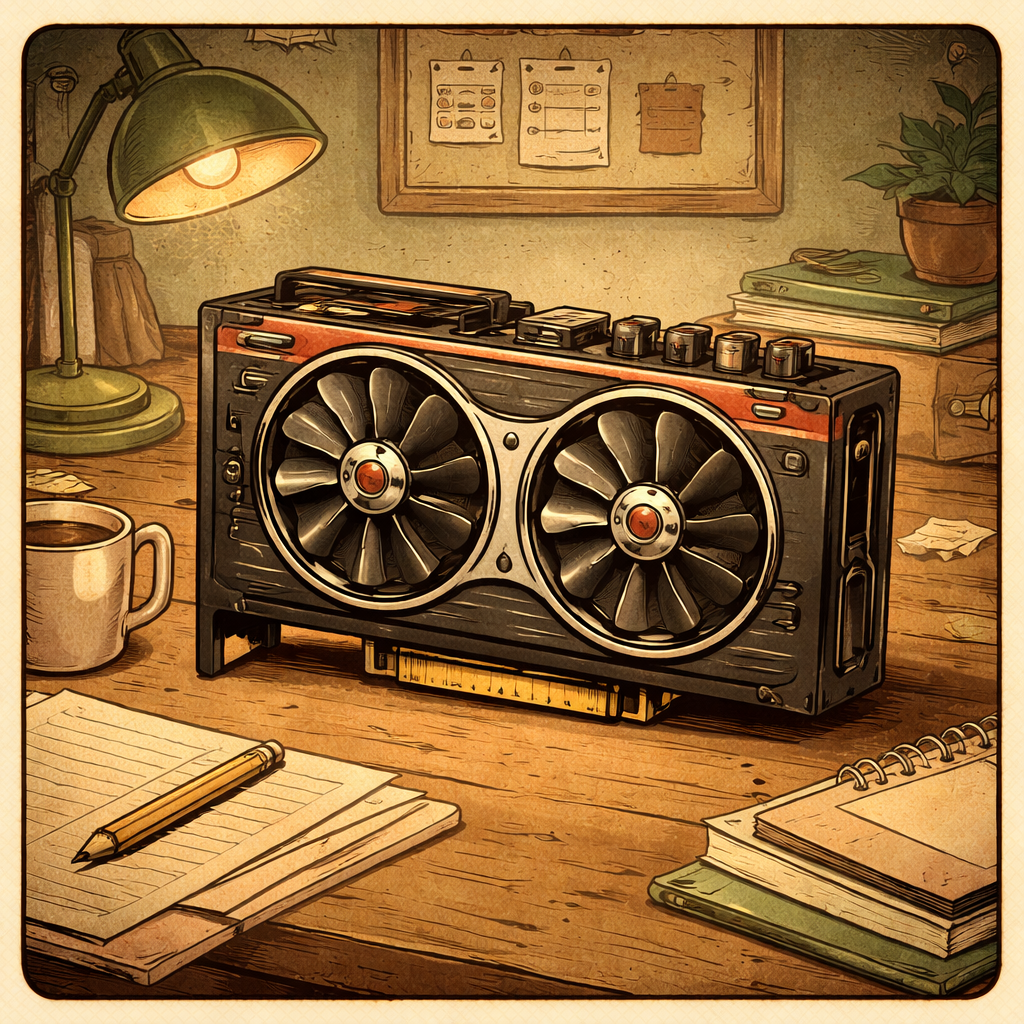
- Ensure the graphics card is fully seated in its PCI-e slot.
- Confirm the monitor cable is connected to the graphics card, not the motherboard (if a dedicated GPU is installed).
- Check that any graphics card power cables are securely connected.
- (Advanced: Do not try if not familiar with computer hardware) If the steps above do not work try removing and re-installing the GPU from the PCI-e slot and power source.
Loose internal connections can prevent the system from sending a video signal.
Final Notes
Most blank-screen monitor issues are not the result of failed or damaged hardware. In the majority of cases, the problem can be traced to something simple, such as a loose or unplugged power cable, an incorrect video input selection on the monitor, or a video cable that is not fully seated or is incompatible with the device in use. These issues can occur easily during routine movement, cleaning, or hardware changes and are often overlooked.
For this reason, troubleshooting should always begin with the simplest and most obvious checks. Verify that the monitor is powered on and receiving electricity, confirm that the correct input source is selected, and ensure the video cable is firmly connected at both ends. From there, continue working through each step in a logical, methodical order. Taking this approach helps isolate the root cause efficiently and prevents unnecessary replacement of parts or assumptions of hardware failure before all basic possibilities have been ruled out.