Having trouble connecting with your printer? We know how frustrating it can be when your system isn’t working as expected. In this article, we will provide detailed instructions on troubleshooting the connection between computers and printers.
Ethernet Connection
Using Ethernet instead of Wi-Fi for your printer helps reduce connection problems because it uses a direct cable connection to your network. This makes the connection more stable and consistent. Wi-Fi can drop signals, slow down, or get interference from walls and other devices, which can cause the printer to go offline, miss print jobs and even lose connection with computers all together. An Ethernet connection reduces network issues so computers can find and send print jobs. I always connect my printers to the network using Ethernet.
Power & UPS
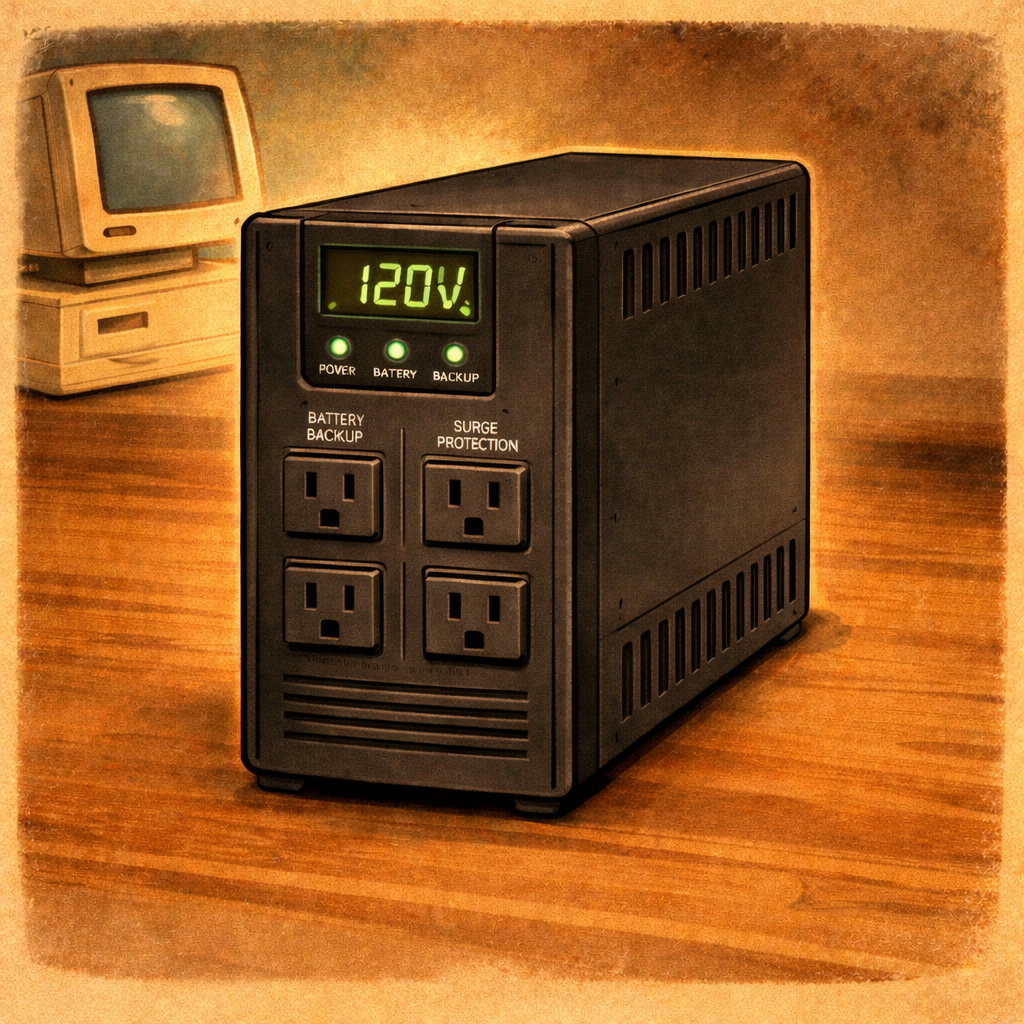
Power outages can happen from time to time and when they do – Printers may stay powered off. So, ensure the printer and all network devices are still powered on.
Ensure the printer is connected to the battery side of an UPS to protect the printer from possible electrical damage and down time.
Error Messages
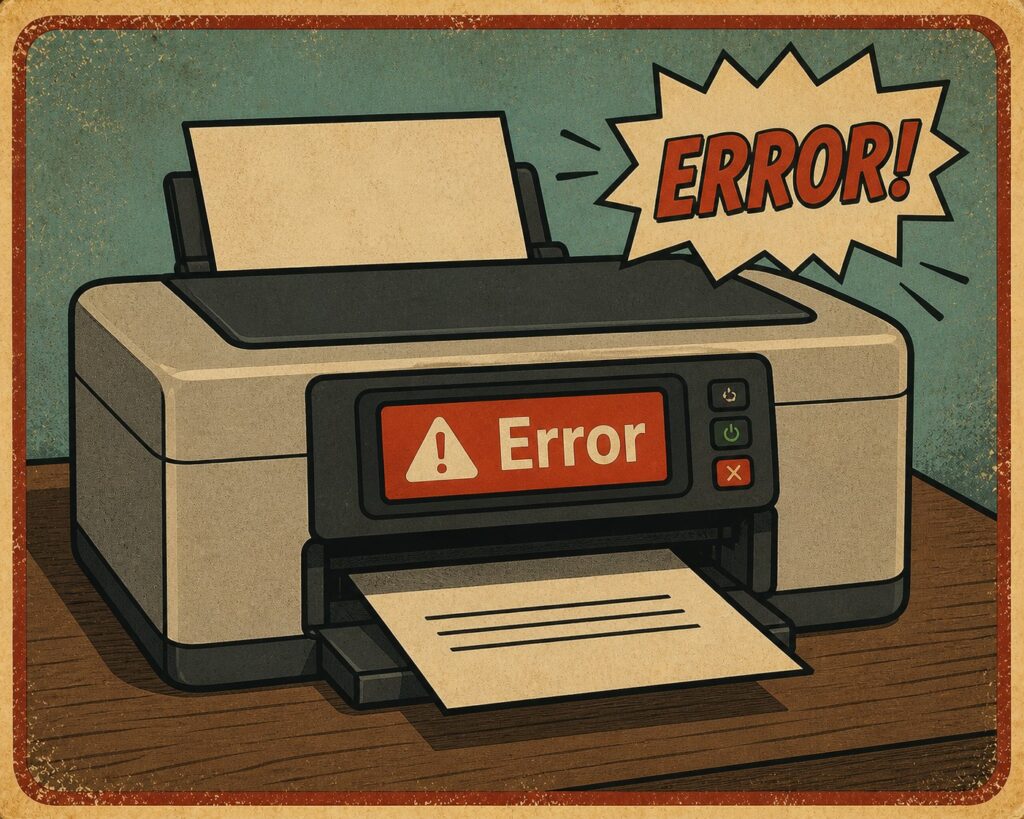
Check the display on the printer for any error messages. It should inform users when the printer is out of paper, ink or other issues.
Each printer is different so users may need to look up any error code that the printer may provide.
Updates
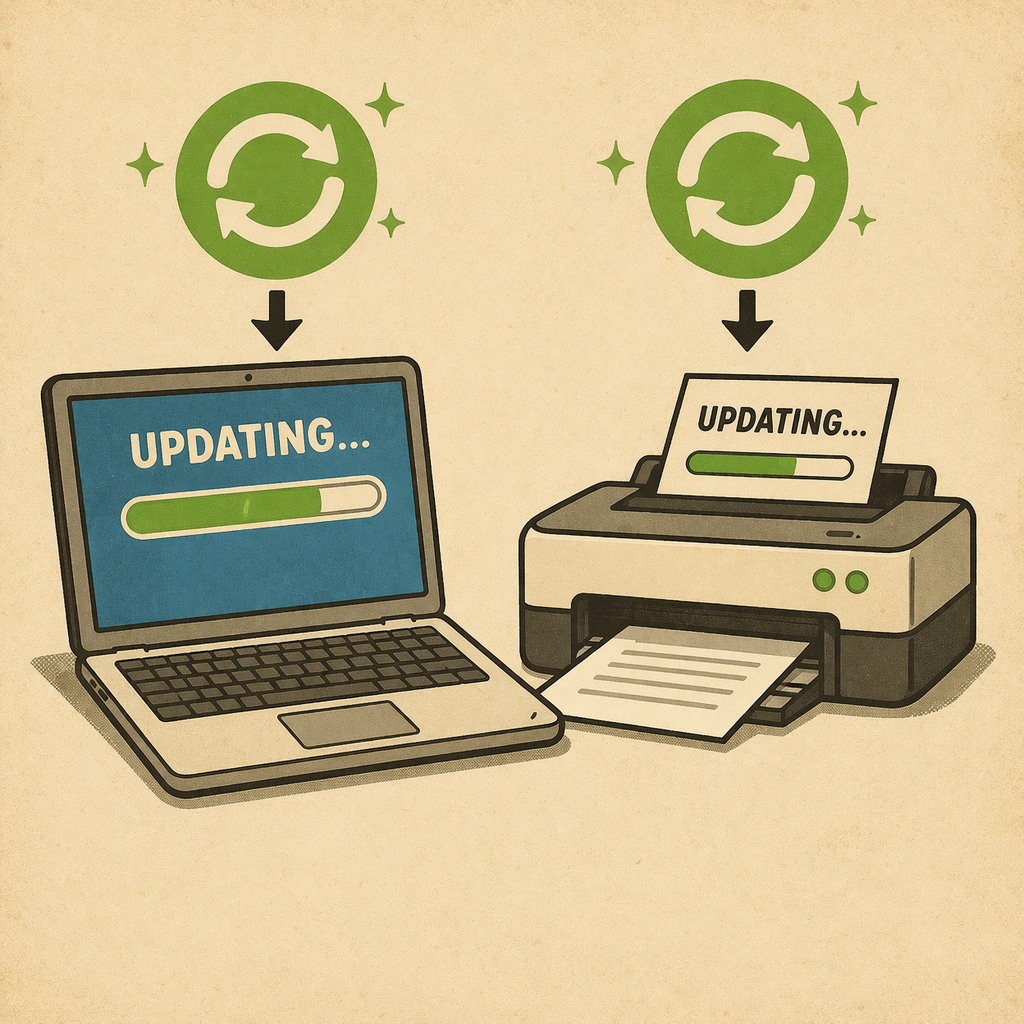
Without regular software updates devices can stop working properly. On the printer screen find the “Check for Firmware Updates” usually found under Settings.
Run Windows updates by pressing the Windows button on the keyboard and typing in Update. Press Enter and click on the ‘Check for Update.’
Check the Official Printer Program for updates. So if the printer is HP or Epson then check the associated printers software.
Printer Selection
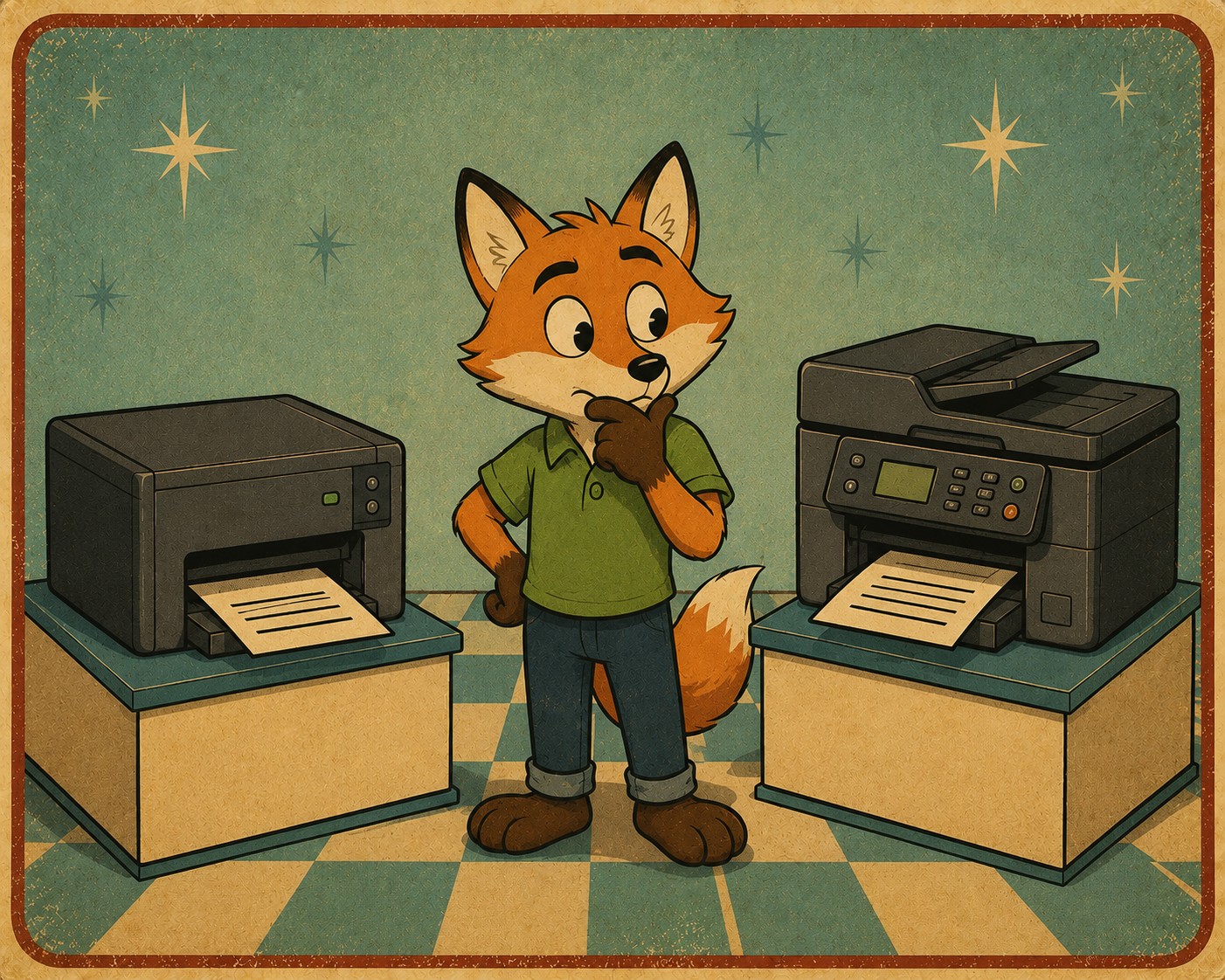
It’s common to select the wrong printer when multiple devices are installed on a computer or shared across a network—especially if they have similar names or one was set as the default automatically. This can lead to print jobs going to the wrong location, failing entirely, or getting stuck in a queue. To fix this, first check the printer name shown in the print window before clicking print. If needed, open your system’s printer settings and set the correct device as the default printer. It also helps to rename printers to something clear (like “Office Printer” or “Upstairs Printer”) so they’re easy to identify.
- Test the connection: Make sure that your printer is properly connected to your computer or network.
- If it is wireless, ensure that it is connected to the correct network and has a strong signal.
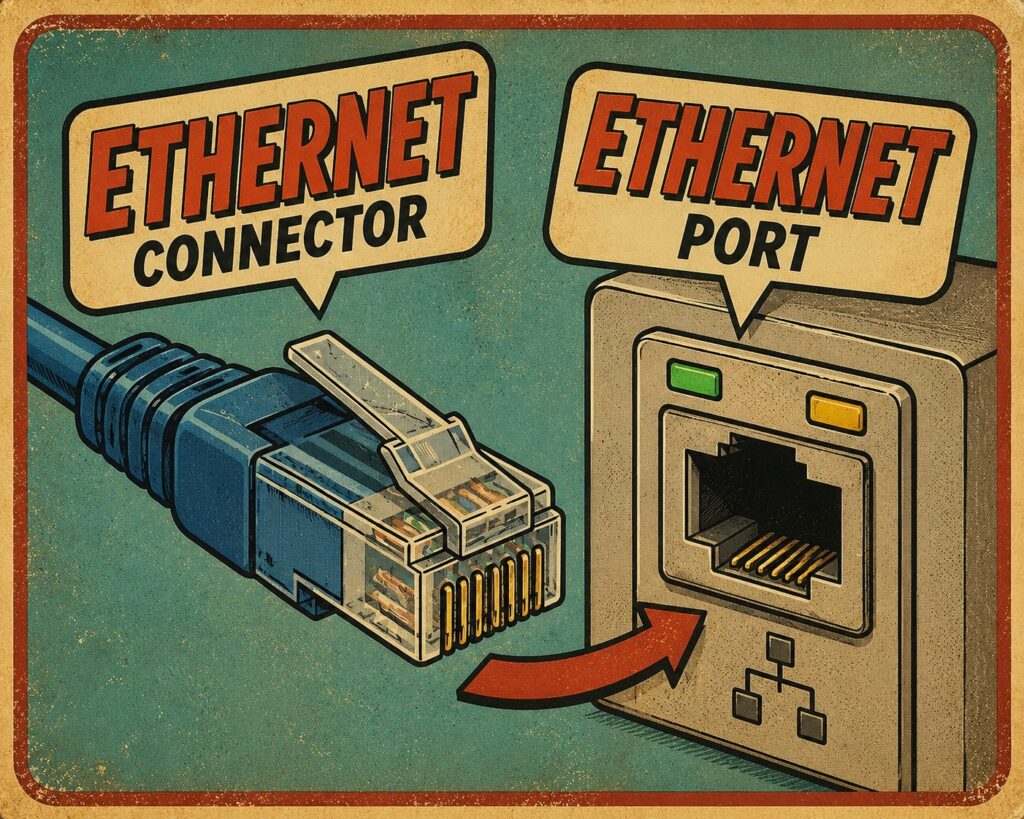
- If the printer is connected to the network via an Ethernet Port then ensure the ethernet cables are pressed into the ethernet ports securely.
- Link lights are lights that are commonly on network ports – Not all network ports have Ethernet lights.
- If your device has physical link lights but they are off then try pushing the Ethernet cable in securely
- Do this for both the router and printer. Sometimes the Ethernet cable can become loose.
- Follow the Ethernet cable all the way from the Printers Ethernet port to the Routers Ethernet port.
- This is to be 100% sure that the printer is physically connected to the router. Sometimes things can become unplugged during office moves or such.
- Network Connection: Ensure that the printer is connected to the same network in which your computer, or other device, is on. If the printer is connected to a different network than your computer then they may not be able to communicate with each other.
- Update your printer’s drivers: Drivers are software that allow your computer to communicate with your printers hardware. If they are outdated or corrupted, this can cause printing issues. Check for updates on the manufacturer’s website or use a driver update tool.
- Save your work and then try restarting the printer and computer.
- If you know how to issue a ping command to the printer then give that a shot.
- Restart your printer: Sometimes, simply turning your printer off and on again can solve minor issues.
- Clean the printer: Dust and debris can build up inside the printer and affect its performance. Use a soft cloth or compressed air to clean out any visible dirt. Be sure to turn off and unplug the printer before cleaning.
- Check the print que via the software on your computer. Sometimes a print job may have issues and if that print job is deleted then the printer can start printing other jobs.
Static IP Address:
IP Addresses are assigned to all devices connected to a router, or switch, and is important for devices to communicate over a network. Certain devices on a network should have a static IP address so that if there is a power outage, or the router/switch is powered off, then devices that have static IP addresses will keep their IP address once the network is back up. Devices that are not static may change when devices are powered off.
Default Printer:
Ensure that your computer is updated with the new printer as its Default Printer. By setting the printer as your default printer it will help ease confusion in the future.
*Color Mode:
Sometimes ‘Color Mode’ will be toggled off and this can cause the computer to not work well with printers or make it so that the computer can only print in black and white mode.
Navigate to Start > Settings > Bluetooth & devices > Printers & scanners > right-click printer > scroll down to Color > Choose Print in Color Option > Apply & Exit.
Spooler Service:
The Spooler Service is a program that runs in the background of computers. It allows the computer to communicate with printers and have print functions. While this rarely happens – sometimes this service will become disabled for some reason and when the Spooler Service is disabled then the computer will not be able to print to the printer.
Click Start > type Task manager > select the Services tab > Verify that the Spooler Service is ‘Running’.
Conclusion:
In conclusion, we have discussed how to identify and resolve common printer problems so you can keep your device running optimally. From printer recommendations to troubleshooting hardware and software issues, we explored valuable solutions that should help you fix error messages and connection problems quickly. We highlighted some helpful resources such as popular printer support assistants and manual driver installers which can be useful when addressing printer challenges.
We also encouraged the practice of regular maintenance in order to ensure optimal performance of your device over time. So don’t hesitate to explore these options if you are in need of a helping hand with any printing matters! We thank you for taking the time out of your day to read this article.