Millions of people use Discord for voice, video, and community conversations — making it perfect for gaming, teamwork, or casual hangouts. However, many users run into the common issue of Discord Mic not working, which usually comes down to incorrect audio settings. To avoid this frustration and get the best experience, it’s important to set up your microphone and speakers (or headphones) properly. This quick guide will walk you through configuring your audio settings in Discord.
1. Hardware Setup (Before You Check Discord Settings)
Run hardware checks before software checks because software settings work correctly only when you connect and power your physical devices. If you leave a microphone unplugged, plug a speaker into the wrong port, or let a headset battery die, no amount of tweaking Discord’s settings will fix the issue. When you secure your cables, use the right ports, and pair or charge your wireless devices, you eliminate the most common causes of audio problems. This ensures that when you move on to software configuration, you’re working with devices that are already functioning at a basic hardware level.
Hardware Checklist:
- 🔋 Charge your battery (if you use wireless devices).
- 🔌 Fully plug in your cables for wired headsets or mics, and make sure they sit securely in the ports.
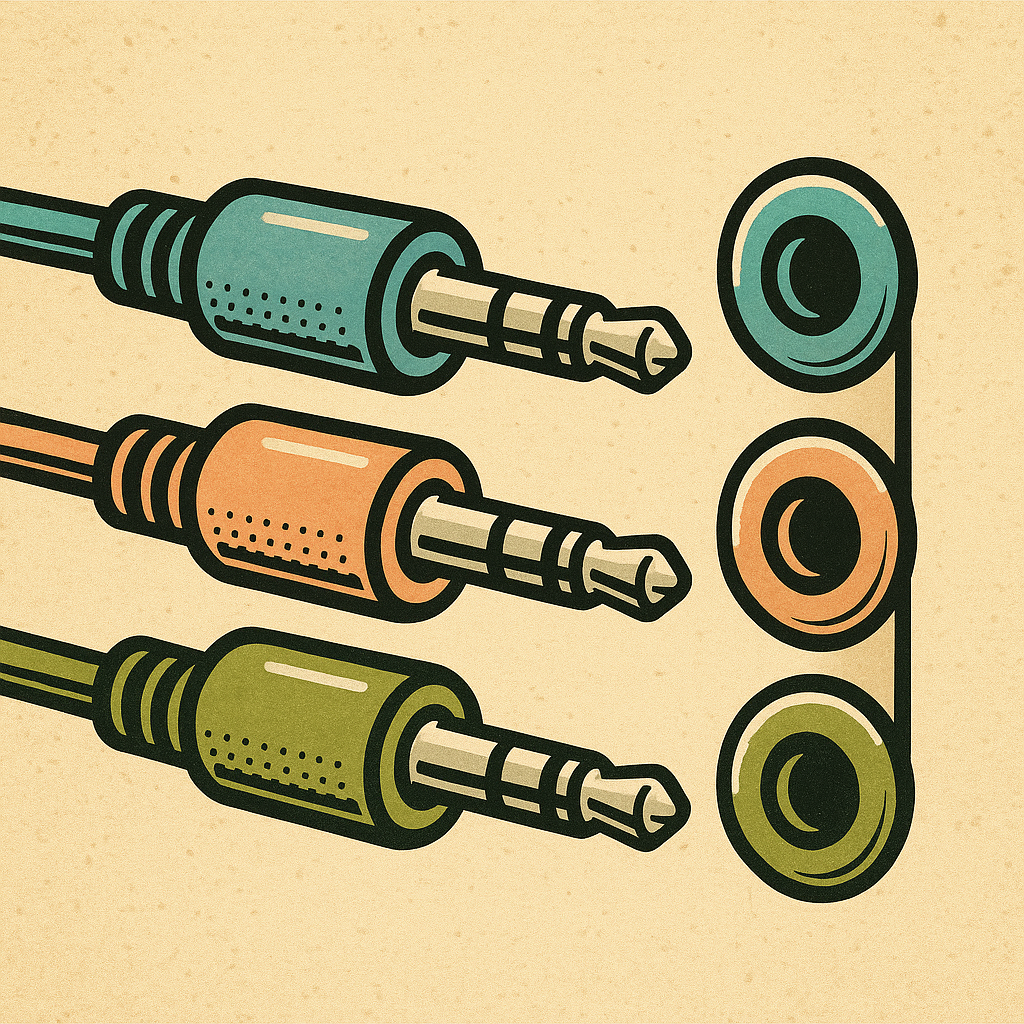
- For round audio barrel connectors (not USB), plug the connectors into the correct ports, and check the port colors since some audio ports use color coding.
- 🎚️ Connect your devices to the correct ports (USB, audio jack, etc.).
- 📶 Verify Bluetooth pairing if you’re using wireless devices.
Common Issues I See:
I see a lot of these issues often. Connecting devices via Bluetooth can be finicky and even I have to check my computers Bluetooth settings often. Always charge devices when not in use so they will have a full battery when you need it. When plugging in color coded connectors, such as audio cables, ensure to use a light – this way you can see the color of the ports.
2. Check Bluetooth Settings:
Bluetooth devices in Windows 11 let you connect wirelessly to accessories like headphones, speakers, microphones, keyboards, and mice without needing cables. You can pair a device through the Bluetooth & devices section in Settings, and once connected, Windows manages the link automatically whenever the device is in range and powered on. This makes Bluetooth ideal for keeping your desk clutter-free while still giving you reliable audio and input connections.
Steps to check Bluetooth Connection:
- 🔵 Click the Start button and open Settings.
- 📶 Select Bluetooth & devices from the left menu.
- 🎧 Look under Audio to find your device.
- ✅ Check the status — if it says Connected, Windows linked it successfully.
- ▶️ Test the connection by playing audio.
3. Configure Audio in Discord
Software checks come next once you finish setting up your hardware. In Discord, you select the correct microphone and speaker (or headset) in the Voice & Video settings.Adjusting input and output volumes, testing your devices with the built-in sound check, and enabling features like noise suppression or echo cancellation help fine-tune your audio for clear communication. Software checks ensure that Discord is actually using the right devices and that your voice comes through at the proper level, preventing issues like “Discord Mic not working” even when the hardware is functioning properly.
Steps to check Software settings in Discord:
- Open Discord Settings ⚙️
- Located on the bottom left – next to your icon.
- Go to Voice & Video
- Select your Input Device (Microphone)
- Select your Output Device (Speakers/Headphones)
- Adjust Input/Output Volume.
- Do not max out the Volume as it can distort your audio.
- Click the Let’s “Check button” to test your mic
About Projects with Jackie!
As the Family Nerd, my goal is to help non-techie people learn about, and find, the tech that they need. We do this by providing as much information as we can from a Nerdy standpoint. This includes common issues seen with family and friends.