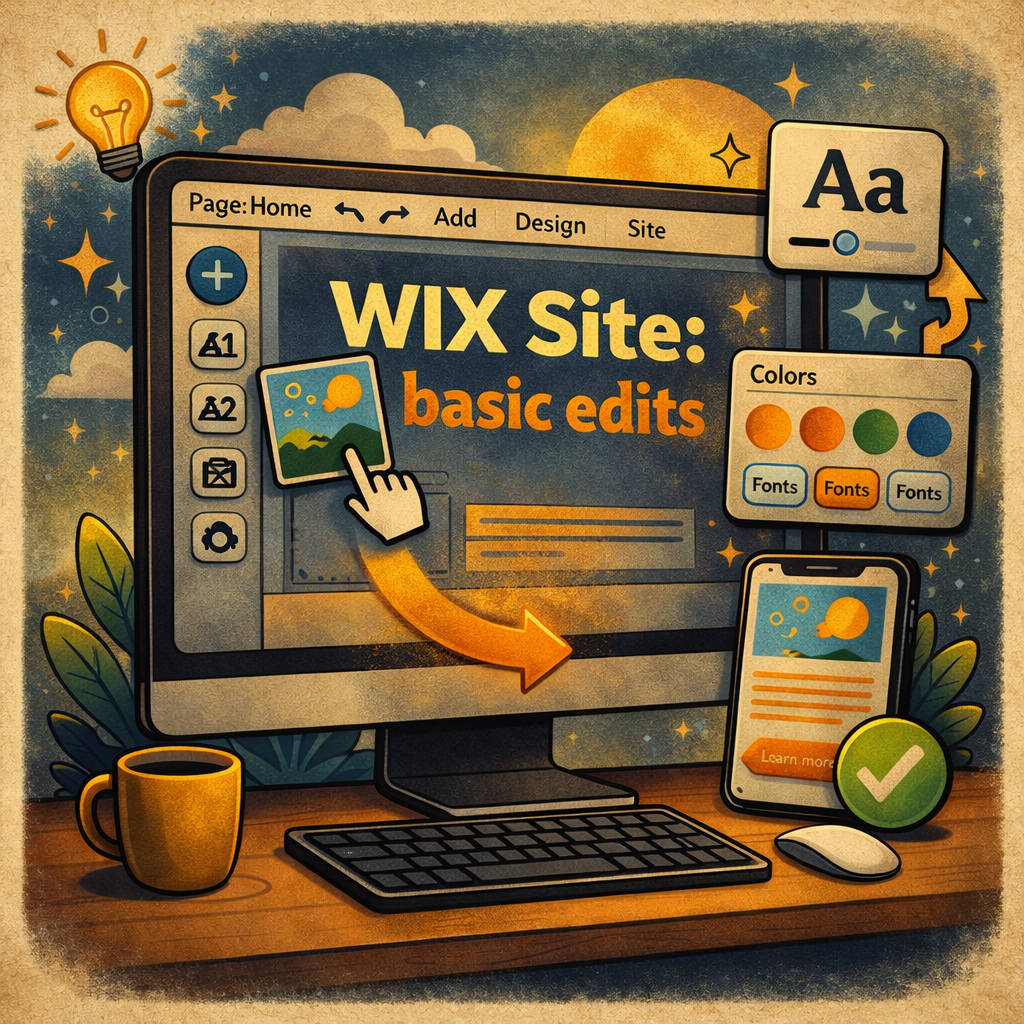
Basic edits in a Wix website are designed to be intuitive and efficient, allowing users to quickly update content without needing technical experience. Using the drag-and-drop editor, you can modify text, replace images, adjust layouts, and update colors or fonts to match your branding. Key tasks typically include editing page content, updating navigation menus, adding new sections (such as contact forms or galleries), and ensuring mobile responsiveness through Wix’s mobile editor. Additionally, users can manage SEO settings like page titles and descriptions, helping improve search visibility. Regularly reviewing and updating your Wix site ensures it stays accurate, visually consistent, and aligned with your business goals.
YouTube Video:
In the video below we cover: Signing into Website, editing text, changing images, and embedded links.
How to Sign Into Your Wix Website:
Signing into your Wix account is quick and straightforward. First, go to the Wix homepage at www.wix.com. In the top-right corner, click the “Sign In” button. Enter the email address and password associated with your account, then click “Log In.” If you created your account using Google, Facebook, or Apple, you can choose that option instead for faster access.
Once signed in, you’ll be taken to your Wix Dashboard, where you can manage your websites, edit content, and view site analytics. To edit your website, simply click on your site and select “Edit Site.”
If you’ve forgotten your password, click “Forgot Password?” on the login page and follow the steps to reset it. Wix will send a password reset link to your email so you can regain access quickly.
For the best experience, make sure you’re using an updated browser and a secure internet connection when signing in.