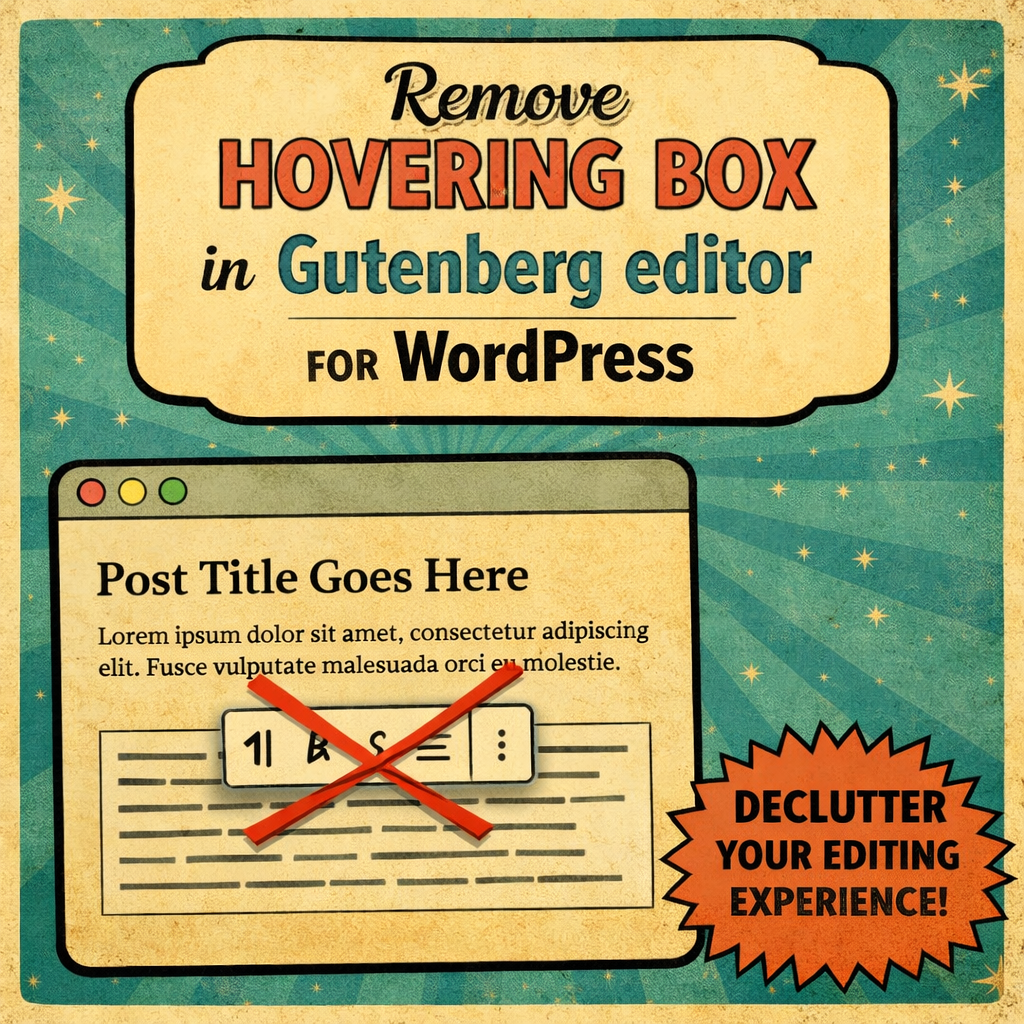
The hovering box in WordPress is part of the block editor (Gutenberg) and is used to display block settings or options. To stop it from hovering over your text and instead move it to the sidebar, you need to adjust the editor settings. This article will show steps to embed the hovering box at the top of the web-page.
Set Hovering Box to Top Toolbar:
By default, Gutenberg places block options in a toolbar that hovers over the block that the cursor is in. This setting is frustrating for a lot of users and you can change this so that the hovering Box is static on the top bar.
Open the Options Menu:
In the upper-right corner of the WordPress editor, click the three vertical dots (“Options” menu).
Change Toolbar Position:
Look for an option called “Top Toolbar”. The option should be the very first option. Enabling this option moves the block toolbar to the top of the page instead of hovering over the block.This won’t move all options to the top menu, but it will toggle the hovering toolbar so that it is always on the top of the page.
Display Block Settings in the Sidebar
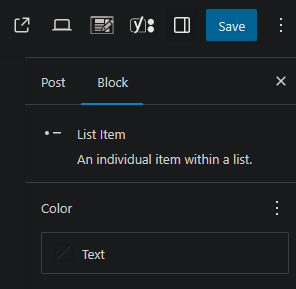
Each block has its settings displayed as a sidebar the right-hand side of the web browser.
When you click on any block, its settings will appear in the sidebar for additional edits. Users will need to click on the block tab to edit the selected block or item in the block.
Ensure the Sidebar is Visible:
If the sidebar is hidden, click the button to the left hand side of the “save” button in the reference photo.
The icon looks like a box with a line down the center of it.