
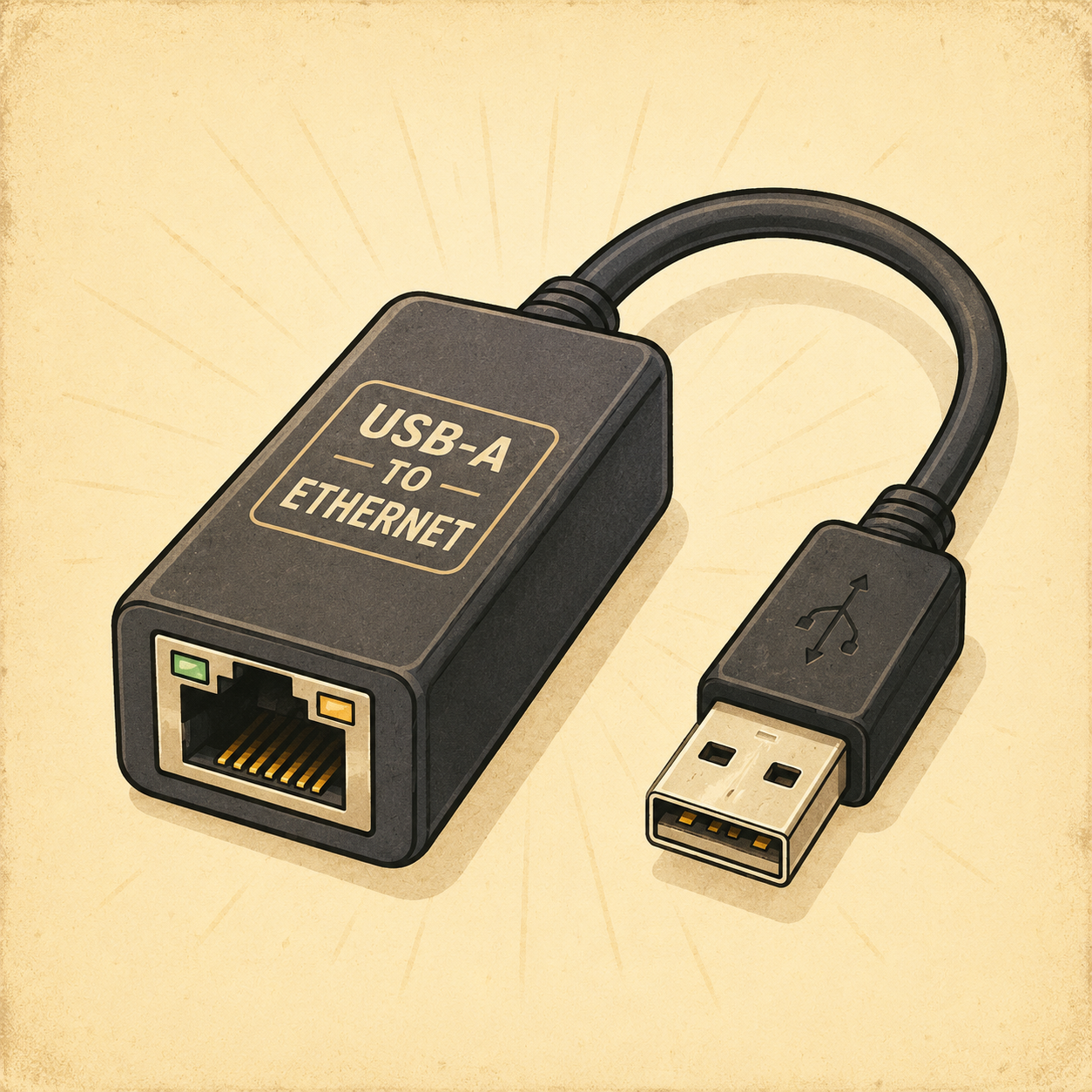
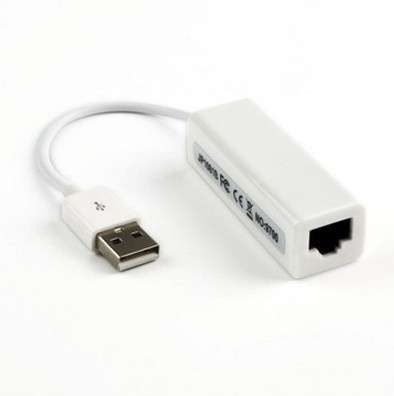
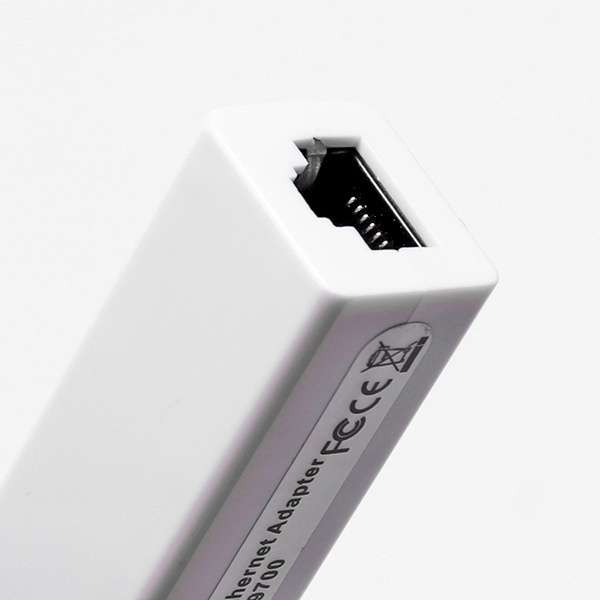
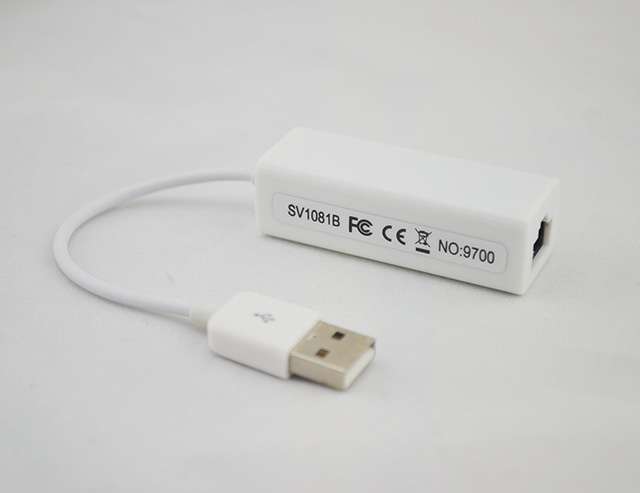
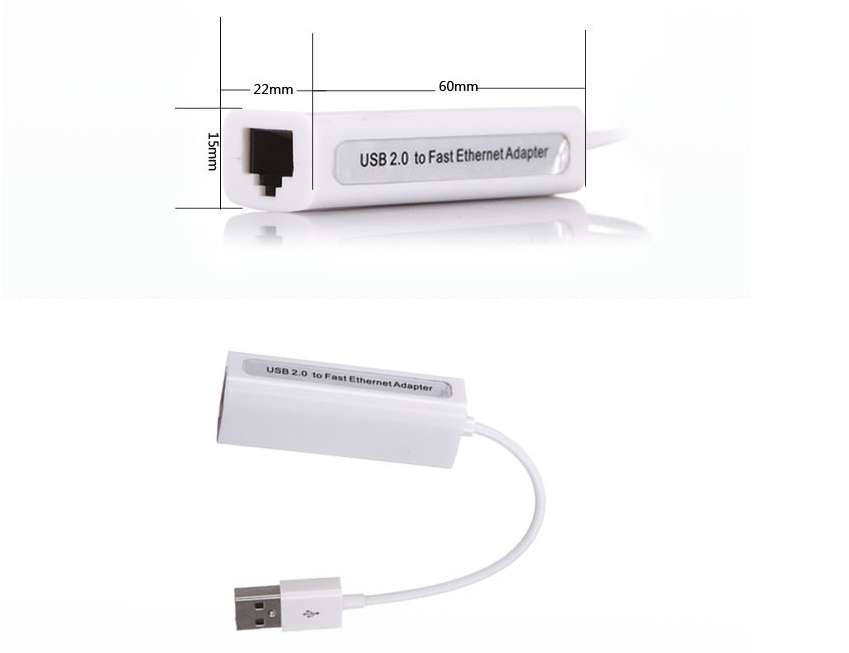
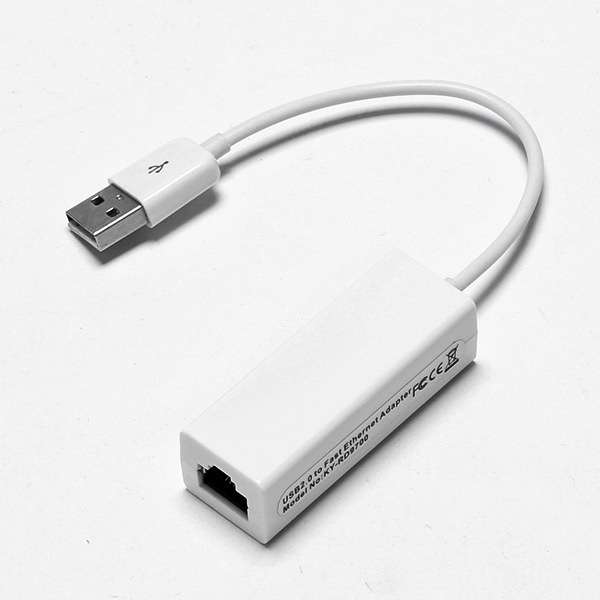
USB to Ethernet Adapter
$12.00
🤖 Nerdy Support
📖 Secure Payments
🚚 Shipping Included
🔰 60-Day Money Back Guarantee
A USB-A to Ethernet adapter is useful because it lets a computer connect to a wired internet connection even if the device does not have a built-in Ethernet port. This can provide a more stable and reliable connection than Wi-Fi, which is helpful for video calls, online gaming, file downloads, streaming, and working from home. With speeds up to 1000 MB per second. It is also a simple way to troubleshoot network problems because it lets you test whether the issue is with Wi-Fi or the internet connection itself. Since it plugs into a standard USB-A port, it is easy to use with laptops, desktops, and older computers without needing to install extra internal hardware.
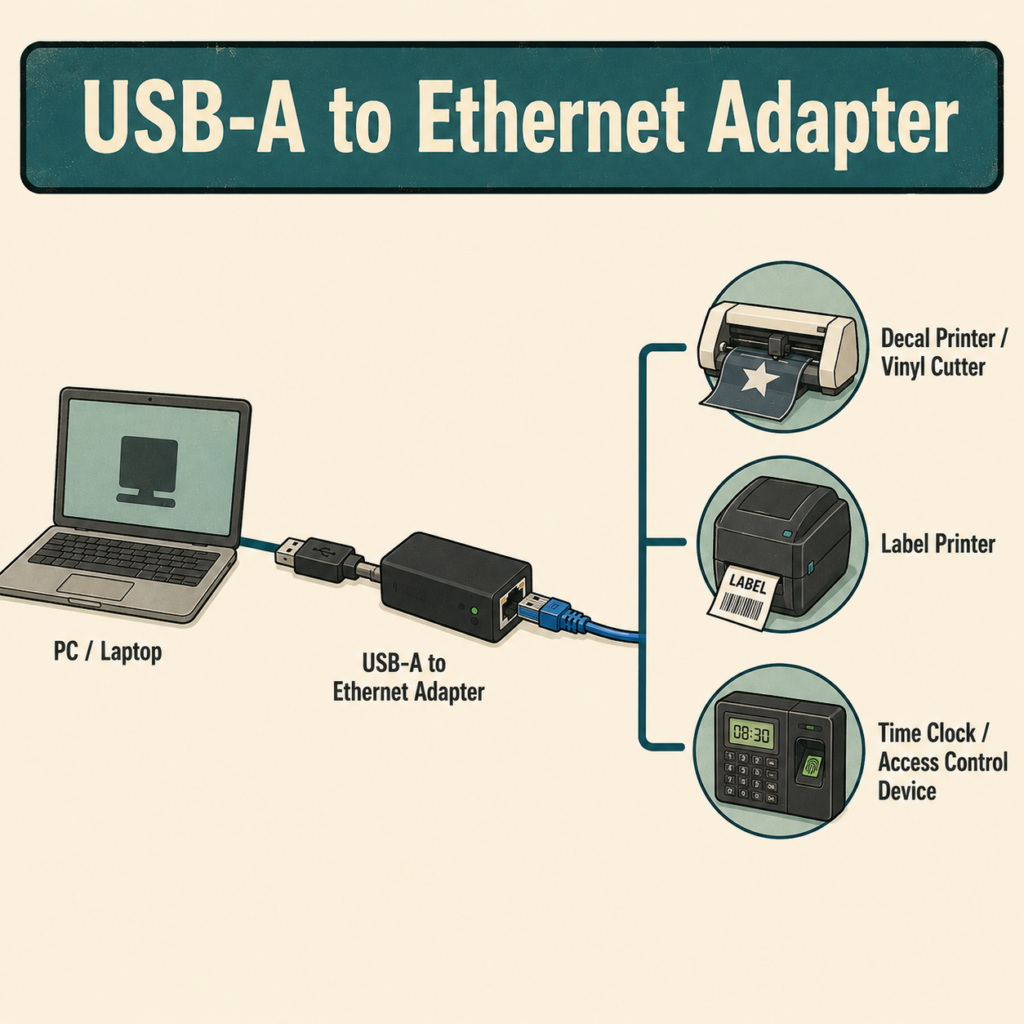
Some specialty equipment, such as decal printers, may need to be connected directly to a computer using an Ethernet cable.
USB Types:
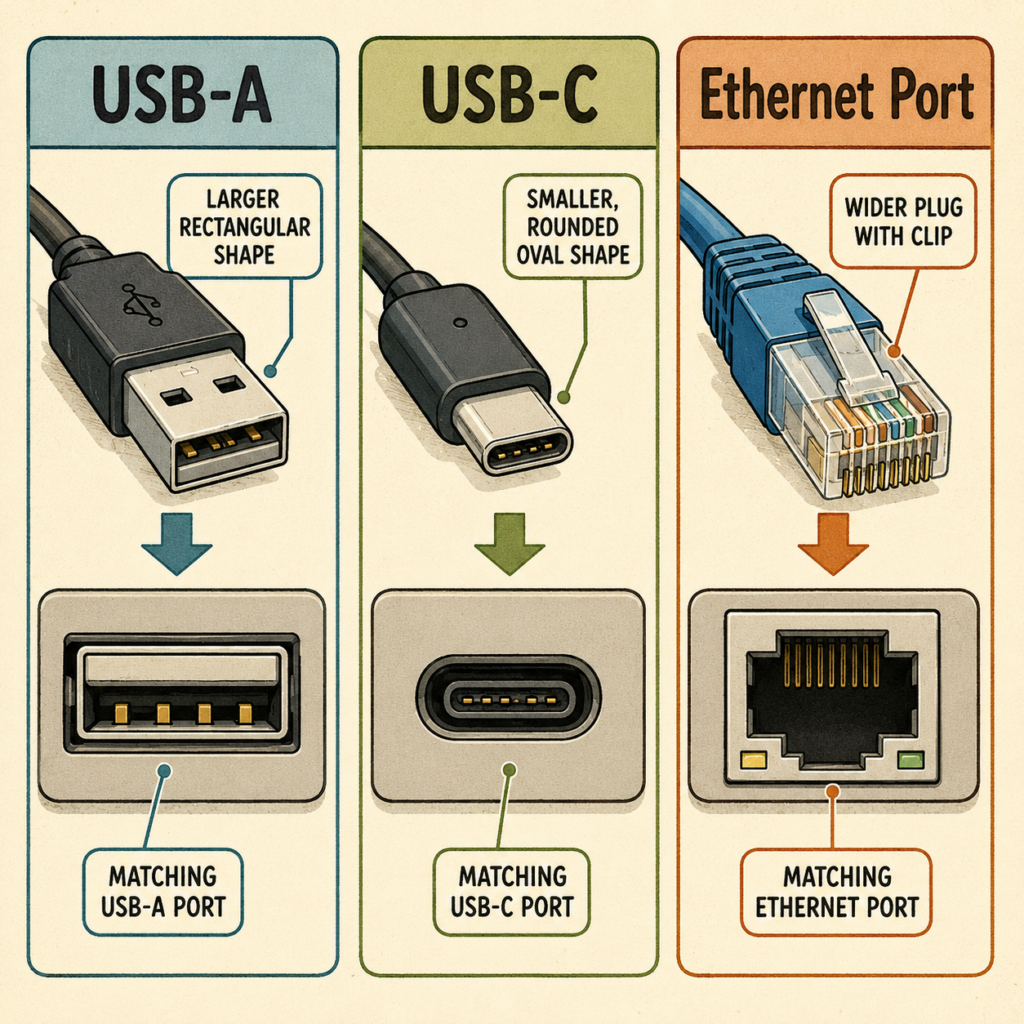
USB-A and USB-C are two different shapes of USB connections. USB-A is the older, larger rectangular plug that many people recognize from flash drives, keyboards, mice, and older computer accessories. USB-C is the newer, smaller rounded plug that can be plugged in either way, so you do not have to flip it around to make it fit. Many newer laptops, tablets, and phones use USB-C, while many older computers and accessories still use USB-A. When choosing an adapter or cable, the most important thing is to match the plug shape to the port on your device.
Ethernet:
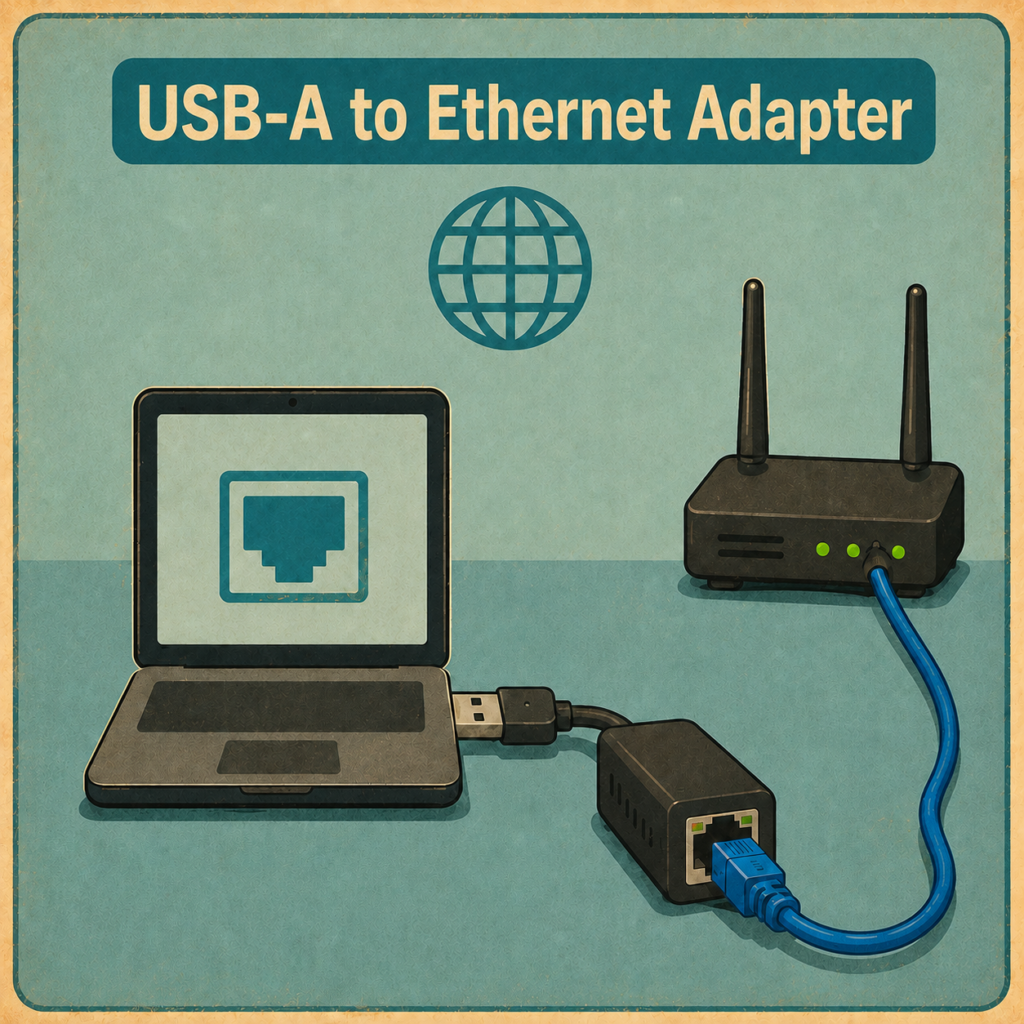
Ethernet can be a better choice than Wi-Fi when you need a stronger and more reliable internet connection. Wi-Fi is convenient, but it can slow down or disconnect because of distance, walls, interference, or too many devices using the same wireless signal. A USB-A to Ethernet adapter lets you connect your computer directly to your router, modem, network switch, or supported equipment using an Ethernet cable. This help’s to provide a more stable connection for video calls, online work, downloads, streaming, gaming, and troubleshooting network problems. It is also helpful for computers that do not have a built-in Ethernet port but still have a standard USB-A port.
Specialty Devices:
A USB-A to Ethernet Adapter can help connect your PC directly to specialty equipment that uses an Ethernet connection, such as certain vinyl printers, decal printers, label printers, time clocks, or access control devices. Instead of relying on Wi-Fi or needing a computer with a built-in Ethernet port, this adapter lets you plug an Ethernet cable into a standard USB-A port on your computer. This can be helpful when a specialty device needs a direct wired connection for setup, printing, data transfer, or reliable communication. It is a simple way to add an Ethernet port to your PC without opening the computer or installing internal hardware.
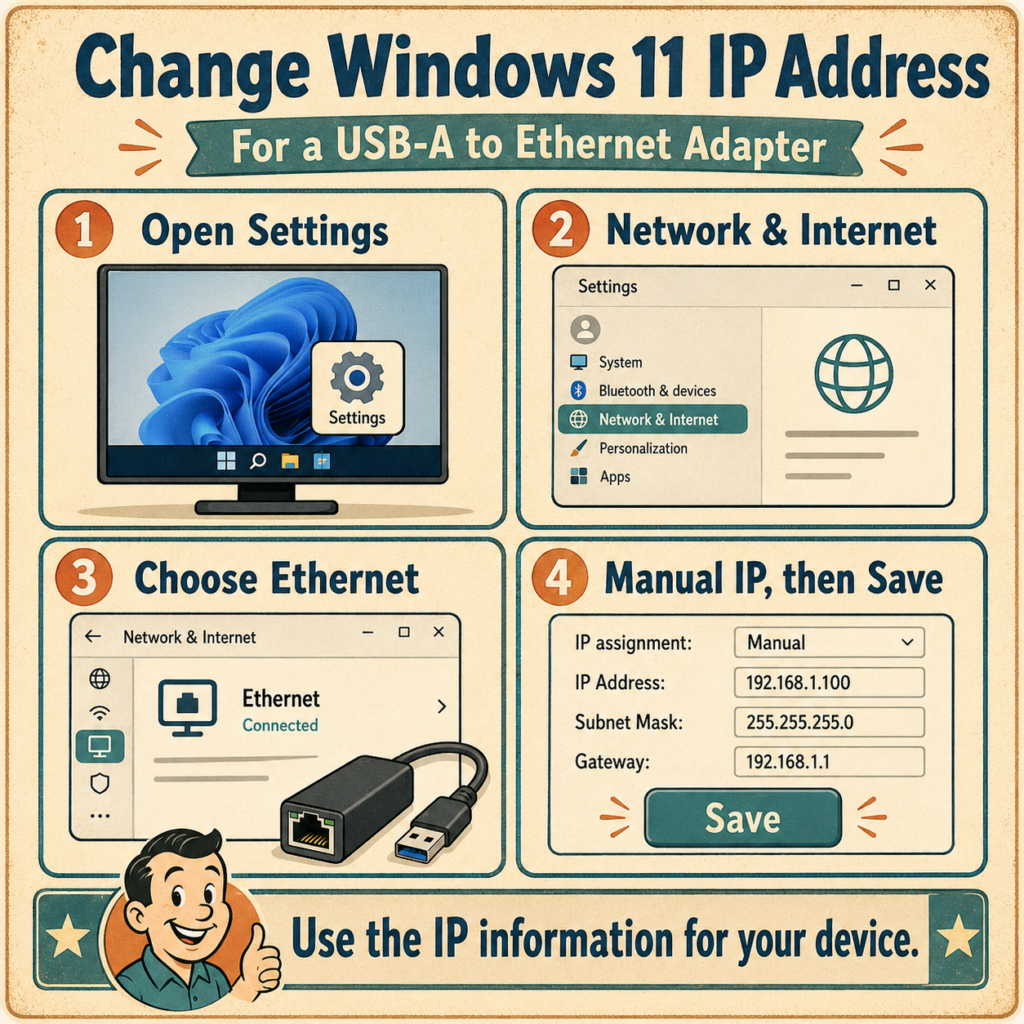
Change IP Address:
Some specialty devices require a direct Ethernet connection to the computer. This may include certain vinyl printers, decal printers, label printers, time clocks, access control devices, or business equipment.
Your device may require specific IP address settings. Check the instruction manual for your specialty device. Use the IP address, subnet mask, and gateway information provided by the device manufacturer.
- Click the Start button.
- Open Settings.
- Select Network & Internet.
- Click Ethernet.
- Find IP assignment and click Edit.
- Change the setting from Automatic (DHCP) to Manual.
- Turn on IPv4.
- Enter the IP address information provided by your device.
- (IP Address should be found in device Manual)
- Click Save.
About Projects with Jackie!
As the Family Nerd, my goal is to help non-techie people learn, and find, the tech that they need. We do this by providing as much information as we can from a Nerdy standpoint. This includes common issues seen with family and friends.
| Color | White |
|---|